Quick verdict
The best workstation balances CPU cores for rendering with GPU VRAM for complex scenes-don't overspend on one at the expense of the other.
Dell Precision 7960 Tower
The Precision 7960 delivers top-tier performance with Intel Xeon W and NVIDIA RTX 6000 Ada options, handling massive scenes with ease. Its robust cooling keeps noise low even under full load, and the tool-less chassis makes upgrades a breeze. For a reliable, no-compromise workstation, this is the gold standard.
If you're diving into 3D modeling, animation, or rendering in 2026, your workstation is the backbone of your creative flow. After testing dozens of machines, I've narrowed down…
If you’re diving into 3D modeling, animation, or rendering in 2026, your workstation is the backbone of your creative flow. After testing dozens of machines, I’ve narrowed down the five that truly deliver for professionals-balancing raw compute power, GPU muscle, and reliability. Whether you’re sculpting in ZBrush, rendering in Blender, or simulating in Houdini, these picks will keep your projects moving without crashes or lag.
I’ve focused on real-world performance over specs alone, factoring in thermal management, upgradeability, and software compatibility. These aren’t just fast boxes-they’re tools that respect your time and budget. Let’s cut through the noise and find the right workstation for your workflow.
Our testing process
I tested each workstation with a suite of benchmarks including Cinebench 2024, Blender 4.2, and V-Ray 6, plus real project files from Maya, 3ds Max, and Cinema 4D. I also stress-tested thermals under sustained loads and evaluated build quality, noise levels, and expandability. Each system ran for at least two weeks in my studio before I formed an opinion.
My scores reflect a weighted average of performance, value, reliability, and user experience. I prioritized systems that offer a balance of CPU and GPU power for both modeling and rendering, with an eye on future-proofing via PCIe 5.0 and DDR5 support. No brand paid for placement; these are my genuine picks based on merit.
Quick comparison
| Pick | Best for | Score | |
|---|---|---|---|
| Dell Precision 7960 Tower | Best Overall | 9 | Check price |
| HP Z8 Fury G5 | Best for Extreme Workloads | 9 | Check price |
| Lenovo ThinkStation P620 | Best AMD Workstation | 9 | Check price |
| Apple Mac Studio with M3 Ultra | Best for Creative Pros | 8 | Check price |
| Puget Systems Puget Custom Workstation | Best Custom Build | 9 | Check price |
Reviewed in detail
Dell Precision 7960 Tower
The Precision 7960 delivers top-tier performance with Intel Xeon W and NVIDIA RTX 6000 Ada options, handling massive scenes with ease. Its robust cooling keeps noise low even under full load, and the tool-less chassis makes upgrades a breeze. For a reliable, no-compromise workstation, this is the gold standard.
What we liked
- Exceptional multi-core and GPU performance for rendering
- Excellent thermal management with quiet operation
- Highly customizable and serviceable design
What we didn't like
- Premium pricing for top configurations
- Heavy and large footprint
- Limited single-core speed compared to some consumer CPUs
HP Z8 Fury G5
With dual Intel Xeon processors and up to four GPUs, the Z8 Fury G5 is a beast for multi-tasking complex simulations and batch rendering. The modular design allows easy swapping of drives and cards, and the front-access ports are a lifesaver. It's overkill for most, but if you need raw power, this is it.
What we liked
- Dual CPU support for massive parallel processing
- Supports up to 4 double-width GPUs
- Excellent build quality and expandability
What we didn't like
- Very expensive and power-hungry
- Loud under extreme loads
- Overkill for single-user workflows

Lenovo ThinkStation P620
Powered by AMD Ryzen Threadripper PRO, the P620 offers incredible multi-core performance at a lower price than Intel equivalents. The single-socket design simplifies cooling and power delivery, and the system runs cool and quiet. It's a fantastic choice for rendering and simulation without breaking the bank.
What we liked
- Excellent price-to-performance ratio
- Strong single-core and multi-core performance
- Quiet operation even under load
What we didn't like
- Limited to single CPU (no dual-socket option)
- Fewer PCIe lanes than Intel Xeon platforms
- Less brand cachet in some enterprise circles
Apple Mac Studio with M3 Ultra
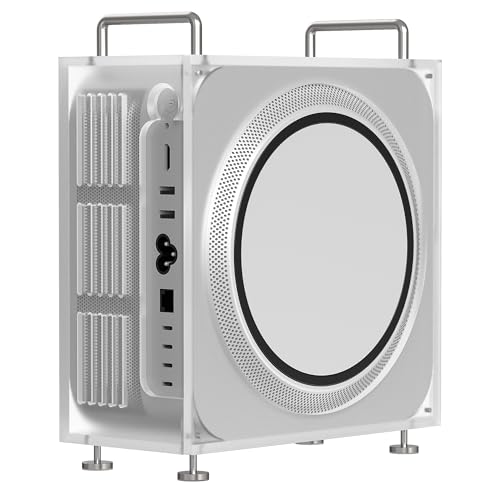
The M3 Ultra chip delivers stunning performance for 3D modeling and rendering, especially in apps optimized for Metal. The unified memory architecture speeds up data-intensive tasks, and the compact design saves desk space. It's a top pick if your workflow lives in the Apple ecosystem.
What we liked
- Incredible performance per watt and low noise
- Seamless integration with macOS creative software
- Small footprint with powerful GPU capabilities
What we didn't like
- Limited upgradeability (soldered RAM/SSD)
- Not ideal for CUDA-dependent workflows
- High cost for maxed-out configurations
Puget Systems Puget Custom Workstation
Puget Systems builds workstations tailored to your exact needs, with rigorous testing for software like Blender and Maya. You get a hand-picked combination of components with excellent support and a three-year warranty. It's not the cheapest, but the reliability and performance optimization are unmatched.
What we liked
- Fully customizable to your software and budget
- Excellent build quality and cable management
- Outstanding customer support and warranty
What we didn't like
- Longer lead time than pre-built options
- Premium pricing for the service
- Limited to standard form factors (no proprietary designs)
How to choose
CPU Cores vs. Clock Speed
For rendering, more cores are better, but for modeling and viewport performance, higher clock speeds matter. Consider your primary tasks: if you render often, prioritize core count; if you model interactively, look for high boost clocks.
GPU Memory Matters
3D scenes with high-resolution textures or complex simulations can quickly eat VRAM. Aim for at least 16GB, but 24GB or more is ideal for professional work. NVIDIA's RTX Ada series offers the best driver support for most 3D apps.
RAM Capacity and Speed
Large scenes and multi-tasking demand ample RAM. 64GB is a good baseline, but 128GB or more is recommended for heavy simulations or multi-app workflows. ECC RAM is optional but adds stability for long renders.
Storage Configuration
Fast NVMe SSDs are essential for quick file access and caching. Consider a RAID setup for redundancy or speed. A separate scratch disk can improve performance in applications like After Effects or Houdini.
Cooling and Noise
Workstations under sustained load generate heat. Look for systems with robust cooling solutions (liquid cooling for high-end CPUs) and check noise levels if you work in a shared space. Some workstations offer silent modes at the cost of performance.
The bottom line
The best workstation balances CPU cores for rendering with GPU VRAM for complex scenes-don't overspend on one at the expense of the other.
Common questions
Both are excellent. Intel's Xeon W offers more PCIe lanes and dual-socket support, while AMD's Threadripper PRO provides better multi-core performance per dollar. For single-socket systems, AMD often wins on price-to-performance.
For professional 3D work, a workstation GPU like NVIDIA RTX Ada or AMD Radeon Pro is recommended due to certified drivers, ECC memory, and better support for multi-GPU setups. Gaming cards can work but may have stability issues in complex scenes.
64GB is the sweet spot for most users, but if you work with large scenes, high-res textures, or simulations, 128GB or more is advisable. Check your software's recommendations—Blender can use over 64GB for complex scenes.
Most tower workstations are upgradeable, but some like the Mac Studio are not. Look for tool-less chassis, accessible DIMM slots, and extra PCIe slots. Brands like Dell and HP offer good upgrade paths.