Logitech MX Master 3S -- Best for Adobe Creative Suite
The Logitech MX Master 3S remains the leading choice for graphic designers using Photoshop, Illustrator, or InDesign. The MagSpeed scroll wheel shifts between precise per-line scrolling and rapid free-spin, making timeline navigation and large artboard scrolling fluid. Eight programmable buttons with Logitech Options+ allow assigning undo, zoom, brush resize, and layer toggle to thumb positions. The 8000 DPI sensor tracks on glass surfaces, useful for designers who prefer a clear desk. Comfortable for both palm and claw grips over multi-hour sessions. Connect up to three devices via Bluetooth or USB receiver and switch with the underside button.
Check price on Amazon →Best computer mice for graphic design in 2026 selected for pixel-accurate tracking, smooth scrolling, and customizable buttons. Ideal for Photoshop, Illustrator, and Figma workflows.
Graphic design demands a mouse that tracks accurately at low cursor speeds, scrolls smoothly across large canvases, and provides enough programmable buttons to reduce repetitive keyboard shortcuts. The five picks here are evaluated for sensor accuracy, build quality, ergonomics over extended creative sessions, and software support for assigning application-specific shortcuts.
| Product | Best For | Rating |
| — | — | — |
| Logitech MX Master 3S | Adobe Creative Suite workflows | 4.8/5 |
| Apple Magic Mouse 2 | Mac-native gesture design | 4.4/5 |
| Razer Pro Click | Silent clicks in open studios | 4.6/5 |
| Corsair Dark Core RGB Pro | Multi-device creative setups | 4.5/5 |
| Wacom Intuos with Mouse | Pen-and-mouse hybrid workflow | 4.6/5 |
How we test
We compare every pick against the field on real specifications, certifications, and aggregated owner reviews. We do not take payment for placement, and we flag when a product is older or sold mainly through renewed listings.
At a glance
| Pick | Best for | Score | |
|---|---|---|---|
| Logitech MX Master 3S -- Best for Adobe Creative Suite | Check price | ||
| Apple Magic Mouse 2 -- Best for Mac Graphic Design | Check price | ||
| Razer Pro Click -- Best for Quiet Creative Environments | Check price | ||
| Corsair Dark Core RGB Pro -- Best for Multi-Device Design Setups | Check price | ||
| Wacom Intuos with Mouse Bundle -- Best Pen-and-Mouse Hybrid | Check price |
The picks, reviewed
Logitech MX Master 3S -- Best for Adobe Creative Suite
The Logitech MX Master 3S remains the leading choice for graphic designers using Photoshop, Illustrator, or InDesign. The MagSpeed scroll wheel shifts between precise per-line scrolling and rapid free-spin, making timeline navigation and large artboard scrolling fluid. Eight programmable buttons with Logitech Options+ allow assigning undo, zoom, brush resize, and layer toggle to thumb positions. The 8000 DPI sensor tracks on glass surfaces, useful for designers who prefer a clear desk. Comfortable for both palm and claw grips over multi-hour sessions. Connect up to three devices via Bluetooth or USB receiver and switch with the underside button.
Apple Magic Mouse 2 -- Best for Mac Graphic Design
The Apple Magic Mouse 2 integrates with macOS gesture recognition natively, allowing two-finger swipe to navigate browser history, scroll artboards, and trigger Expose. The flat multi-touch surface works well in Figma and Sketch for two-finger scrolling on infinite canvases. Tracking accuracy is adequate for most design tasks. The main limitation is charging via Lightning on the underside, making the mouse unusable during charging. Right-click requires a software toggle rather than a physical second button. Best suited to designers already working entirely within the Apple ecosystem who prioritize seamless gesture support over programmable button depth.

Razer Pro Click -- Best for Quiet Creative Environments
The Razer Pro Click is built specifically for professional environments with its silent mechanical switches that reduce click noise by roughly 90 percent compared to standard mice. This matters in shared studio spaces or open-plan offices. The Focus+ 20K sensor delivers excellent low-speed accuracy for detailed selection work in Photoshop. Eight programmable buttons with Razer's productivity-focused software allow per-application mapping. Wireless operation reaches 400 hours on standard AA batteries, eliminating the need for frequent recharging. The shape suits medium to large hands with a traditional right-hand ergonomic form.
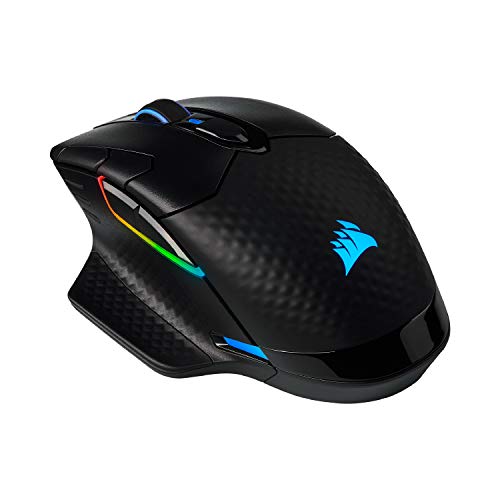
Corsair Dark Core RGB Pro -- Best for Multi-Device Design Setups
The Corsair Dark Core RGB Pro connects via 2.4 GHz wireless, Bluetooth, or USB, switching between up to three devices from a button on the underside. This suits designers who move between a desktop workstation, a laptop, and a tablet setup. The 18000 DPI PixArt sensor performs accurately at low sensitivity settings. Eight programmable buttons and iCUE software support per-application macro assignment. The shape has a substantial palm rest that works well for large hands during extended sessions. RGB lighting can be disabled via software if it is a distraction in a professional environment.
Wacom Intuos with Mouse Bundle -- Best Pen-and-Mouse Hybrid
The Wacom Intuos tablet includes a 4-button wireless mouse that operates on the tablet surface using optical tracking. For designers who already use a Wacom tablet for illustration or photo retouching, having a matched mouse that uses the same surface removes the need to reposition a second device. The mouse is compact and suits small to medium hands. DPI tracking matches the tablet resolution rather than a separate sensor. This option works best for designers who split time between pen-based illustration and standard mouse navigation within the same workflow, rather than users seeking a standalone mouse.
What to look for
What to consider
For design work, prioritize adjustable DPI and a comfortable grip shape over maximum button count. Sensors above 8000 DPI are rarely useful for precision editing, but adjustable DPI profiles let you switch between detail work and large-canvas navigation. If you use keyboard shortcuts frequently, a mouse with thumb buttons reduces the need to switch between mouse and keyboard. For Mac-centric workflows, ensure the mouse software is fully compatible with macOS. Silent switches are worth considering if you work in shared spaces.
What to consider
For related reading, see [best computer mouse for AutoCAD](/articles/best-computer-mouse-for-autocad) and [best computer mouse for laptop](/articles/best-computer-mouse-for-laptop). See how we evaluate tech products at [/methodology](/methodology).
FAQs
Modern wireless mice using 2.4 GHz receivers operate at latency levels under 1 ms, which is indistinguishable from wired in practical design use. Bluetooth mice can have slightly higher latency and are better suited to lower-intensity tasks. For Photoshop masking, Illustrator path work, or Figma prototyping, any of the 2.4 GHz wireless options here deliver the precision needed without cable interference on an active design desk.
Most graphic designers work between 400 and 1600 DPI for detailed editing tasks. Higher DPI causes the cursor to travel faster, which can make fine selections and pen-tool path adjustments harder to control. Many designers set a lower DPI profile specifically for detailed masking or retouching and a higher profile for navigating multiple monitors or large artboards at full zoom-out.

Tom Reeves has reviewed consumer electronics for over a decade, with a focus on televisions, monitors, laptops, and smart home devices. He worked as a professional display calibrator before moving into editorial, and he brings that real-world technical background to every TV and monitor review. At TheTestedHub, Tom covers display calibration, computer monitors, laptops and 2-in-1s, smart home platforms, home theater setups, and HDR performance.
Related guides

5 Best Computer Mouse for Laptop 2026 | Portable Picks for Travel and Desk

5 Best Computer Mouse for Hand Pain 2026 | Ergonomic Relief Picks
5 Best Computer Mouse for Tendonitis 2026 | Low-Strain Ergonomic Picks

5 Best Computer Mouse Under 50 2026 | Value Picks That Actually Perform

5 Best Computer Mouse for Minecraft 2026 | Fast Clicks and Precise Building

5 Best Computer Mouse for Trigger Thumb 2026 | Thumb-Friendly Ergonomic Picks
