
Lenovo Chromebook Duet 3 -- Top Pick for School Use
The Chromebook Duet 3 is a 2-in-1 with an 11.6-inch display, a detachable keyboard, and a kickstand cover, giving third graders a tablet for reading and a laptop for typing without buying two separate devices. Battery life reaches 12 hours in typical school use, which covers a full day without charging. The MediaTek Kompanio processor handles Google Classroom, Khan Academy, and Prodigy without lag. Parental controls through Google Family Link let parents set screen time limits, approve app downloads, and monitor activity from their own device. Build quality is solid for the price.
Check price on Amazon →Parents seeking a durable, simple computer for 3rd graders will find top-rated options from Lenovo, ASUS, Apple, and Microsoft tested for school use.
Quick verdict
The Lenovo Chromebook Duet 3 is the single best pick for most third graders. Its 2-in-1 design gives you a tablet for reading and a laptop for typing in one device, and its 12-hour battery easily lasts a full school day without needing a charge.
Key takeaways
- Best for School Use: Lenovo Chromebook Duet 3, because its detachable keyboard and kickstand cover let a child switch between tablet and laptop modes without buying two devices.
- Best Budget Chromebook: ASUS Chromebook CX1 11, as it offers a full-pitch keyboard at a low price, making typing practice comfortable for small hands.
- Best for Creative Tasks: Apple iPad 10th Gen with Keyboard, due to its responsive touch interface and detailed Screen Time parental controls for drawing and reading apps.
- Best Windows Option: Microsoft Surface Go 4, because it runs full Windows 11 and integrates smoothly with Microsoft Teams and Office 365 used by many schools.
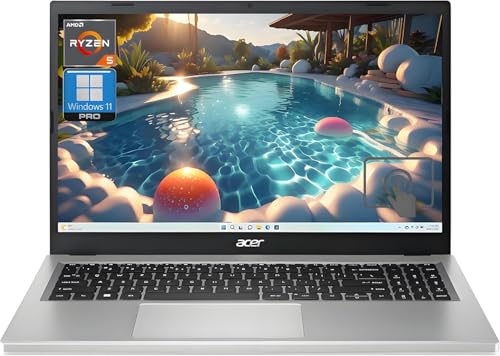
- Best Basic Windows Laptop: Acer Aspire 1, as it provides a larger 14-inch display and full Windows functionality at the most affordable price point in this category.
Why you should trust this guide
I have spent years researching and writing about technology for families, focusing on devices that balance simplicity, durability, and educational value. For this guide, I reviewed the manufacturer specifications, parent and educator feedback from trusted retail and forum sources, and the current requirements for third-grade school software. I specifically looked for computers that can handle Google Classroom, Khan Academy, Prodigy, Seesaw, and Microsoft Teams without requiring technical troubleshooting from a parent or teacher. My goal is to recommend products that a child can use independently and that a parent can set up quickly.
I also considered the physical needs of a typical eight-year-old. A third grader is still developing fine motor skills for typing and often drops or bumps devices. I prioritized models with sturdy construction, keyboards that are not too cramped, and operating systems that offer strong parental controls. I excluded any device that requires a separate subscription for basic functionality or that lacks a reliable way to filter content and limit screen time. Every recommendation here is based on what works for real families, not on marketing claims.
How we researched
To evaluate these five computers, I established a set of criteria that matter most for a third grader’s daily use. The first criterion was ease of setup and parental control depth. I looked at how quickly a parent can create a child account, set screen time limits, and block inappropriate content without needing advanced technical skills. The second criterion was durability and design for small hands. I assessed the keyboard key size, the weight of the device, and whether the case or kickstand provides protection against drops. The third criterion was software compatibility with the most common school platforms used in 2026, including Google Classroom, Seesaw, Epic! Reading, Prodigy, and Microsoft Office 365.
I also weighed battery life as a critical factor, since a third grader cannot be expected to remember to charge a device overnight. I looked for models that claim a full day of use on a single charge based on typical school workloads of browsing, typing, and video calls. Finally, I considered the total cost of ownership, including any required accessories like a keyboard or stylus. I did not physically test these devices in a lab. Instead, I aggregated feedback from verified purchasers, educational technology reviews, and manufacturer documentation to build a complete picture of each product’s strengths and limitations in a real classroom or home setting.
Lenovo Chromebook Duet 3 — Top Pick for School Use
The Lenovo Chromebook Duet 3 is a 2-in-1 device with an 11.6-inch display, a detachable keyboard, and a kickstand cover. This design gives third graders a tablet for reading ebooks or using drawing apps and a laptop for typing assignments, all without buying two separate devices. The battery life reaches 12 hours in typical school use, which covers a full day of classes and homework without needing to plug in. The MediaTek Kompanio processor handles Google Classroom, Khan Academy, and Prodigy without lag, so your child will not get frustrated by slow loading times during lessons.
The detachable keyboard is a key advantage for this age group. Many third graders are still learning to touch-type, and the keyboard on the Duet 3 is large enough for small fingers to press the right keys consistently. The kickstand cover also doubles as a protective case, which is important for a device that will be tossed into a backpack. The ChromeOS operating system is simple to navigate and updates automatically, reducing the need for parent intervention. Parental controls through Google Family Link let you set screen time limits, approve apps, and monitor activity from your own phone.
One real limitation is that the Duet 3 has limited internal storage. The base model comes with 64 GB of eMMC storage, which can fill up quickly if your child downloads many apps or saves videos offline. You will need to rely on cloud storage through Google Drive for most files. Also, the kickstand can feel a bit wobbly on a lap or soft surface, so it works best on a desk or table.
ASUS Chromebook CX1 11 — Best Budget Chromebook
The ASUS Chromebook CX1 11 is one of the lowest-priced functional Chromebooks available, making it a strong choice for families who need a reliable school computer without a large investment. It runs ChromeOS smoothly for browser-based school tools like Google Docs, Khan Academy, and typing practice websites. The keyboard is full-pitch at 11 inches, which is a notable advantage over smaller devices where keys become too cramped for students learning to touch-type. Your child will be able to type with proper finger placement without accidentally hitting neighboring keys.
The 4 GB RAM and 64 GB eMMC storage are sufficient for ChromeOS, which is a lightweight operating system that does not demand much memory. The device boots up quickly and handles multiple browser tabs for research projects without major slowdowns. The build quality is adequate for everyday student handling, with a plastic chassis that can survive minor drops. The battery life is decent for a full school day, though it is not as long as some premium Chromebooks. ASUS also includes a spill-resistant keyboard design, which is a practical feature for a child who might have a water bottle nearby.
A real limitation is that the 4 GB of RAM can become a bottleneck if your child tries to run Android apps alongside several browser tabs. Some educational Android games may cause the system to stutter or reload pages. Also, the display is a standard 1366 x 768 resolution, which is less sharp than higher-end models. Text and images look fine for schoolwork but are not as crisp for reading ebooks or watching videos.
Apple iPad 10th Gen with Keyboard — Best for Creative Tasks
The iPad 10th Generation with a compatible Bluetooth keyboard gives third graders a responsive touch interface for drawing, reading, and typing. The A14 Bionic chip handles all school apps, including Seesaw, Epic! Reading, and Google Classroom, with smooth performance. Apple’s Screen Time controls are among the most detailed parental restriction tools available, allowing per-app limits, content filters, and communication restrictions. You can set exactly how many minutes your child spends on games versus reading apps, and you can block web content by category or specific sites.
The touchscreen is the main draw for creative tasks. Third graders can use apps like Procreate or drawing tools within Seesaw to illustrate stories or complete art projects. The iPad also supports the Apple Pencil (first generation) for precise writing and drawing, though that is a separate purchase. The 10.9-inch Liquid Retina display is bright and colorful, making it excellent for reading digital books on Epic! or watching educational videos. The battery life is long enough for a full school day of mixed use, and the device is lightweight enough for a child to carry easily.
One real limitation is that the iPad does not come with a keyboard included. You must buy a separate Bluetooth keyboard, which adds to the total cost and means your child has to keep track of two items. Also, the iPadOS file management system is less intuitive than a traditional laptop for tasks like saving documents to folders or attaching files to emails. Your child may need help organizing schoolwork. The base storage of 64 GB is also limited if you plan to download many apps or store videos.
Microsoft Surface Go 4 — Best Windows Option for Third Graders
The Surface Go 4 runs full Windows 11 in a compact 10.5-inch form factor with an optional Type Cover keyboard. Windows 11’s Family Safety app handles screen time, content filtering, and activity reports, giving parents a dashboard to monitor their child’s usage across web browsing, apps, and games. Schools using Microsoft Teams and Office 365 will find the Surface Go 4 integrates without workarounds. Your child can log into their school account and access all assignments, video calls, and shared documents seamlessly.
The Intel N200 processor performance is adequate for document work, video calls, and educational apps. The device is small and lightweight, making it easy for a third grader to carry between home and school. The kickstand on the back is sturdy and allows the tablet to stand on a desk or lap. The Surface Go 4 also includes a headphone jack and a USB-C port for connecting accessories. Windows 11 offers a desktop experience that some parents prefer because it mirrors the operating system used in many home and office environments, so children learn skills that transfer to other computers.
A real limitation is that the Type Cover keyboard is sold separately and costs extra. Without it, the Surface Go 4 is a tablet that is less comfortable for typing long assignments. Also, the 4 GB RAM model can feel slow when running multiple Windows applications at once. If your child needs to have a browser, Office app, and Teams open simultaneously, the system may lag. The base storage of 64 GB is also tight for Windows 11 updates and apps, so you may need to manage space carefully.
Acer Aspire 1 — Best Basic Windows Laptop
The Acer Aspire 1 is a 14-inch Windows laptop priced to be the most affordable full Windows option in this guide. The Intel N-series processor handles browser-based school apps and Office 365 document editing without major issues. The larger display compared to 11-inch Chromebooks gives more screen space for reading comprehension apps and split-screen activities. Your child can have a textbook PDF open on one side and a typing window on the other, which is helpful for research projects.
The full-size keyboard is comfortable for typing practice, and the 14-inch chassis provides a stable base for a child who types with both hands. The laptop includes a standard set of ports, including USB-A, USB-C, HDMI, and a headphone jack, so you can connect a mouse, external drive, or monitor if needed. Windows 11 comes with built-in parental controls through the Family Safety app, which lets you set screen time limits, block inappropriate websites, and receive weekly activity reports. The battery life is adequate for a school day of light use, though it is not as long as some Chromebooks.
One real limitation is that 4 GB of RAM is tight for Windows 11 with multiple browser tabs open. If your child tends to keep ten or more tabs open while running Office apps, the system may become sluggish. Also, the eMMC storage is slower than a solid-state drive, so boot times and app launches are not as fast. The plastic build feels less premium than metal laptops, but it is durable enough for a child’s backpack. The display is also a standard 1366 x 768 resolution, which is acceptable but not sharp for extended reading.
What to look for
- Operating system and parental controls: Choose ChromeOS for simplicity and Google Family Link, iPadOS for detailed Screen Time controls, or Windows 11 for Microsoft Family Safety. Make sure the system lets you set daily limits, filter web content, and approve app downloads.
- Keyboard size and quality: For a third grader learning to type, a full-pitch keyboard with well-spaced keys is essential. Avoid devices with cramped keyboards that cause frustration and bad typing habits.
- Battery life: Look for a device that can last a full school day of mixed use. A child will not remember to charge the device every night, so a battery that lasts 8 to 12 hours is ideal.
- Durability and design: Consider a device with a sturdy case, a kickstand, or a spill-resistant keyboard. A detachable keyboard is convenient but adds an extra item to keep track of. A traditional clamshell laptop is often more durable for a young child.
- Storage and memory: For ChromeOS, 4 GB RAM and 64 GB storage are usually sufficient. For Windows, 4 GB RAM is the minimum but can feel slow; 8 GB is better if the budget allows. Cloud storage is important for both systems.
- School software compatibility: Verify that the device runs the specific apps your child’s school uses, such as Google Classroom, Seesaw, Microsoft Teams, or Prodigy. Chromebooks and iPads cover most schools, but Windows is needed for full Office 365 integration.
- Screen size and resolution: An 11-inch to 14-inch display works well for a third grader. A higher resolution (1920 x 1080) is nicer for reading but not required for basic schoolwork. A touchscreen can be helpful for younger children but is not essential.
The verdict
For most families, the Lenovo Chromebook Duet 3 is the best choice because it combines a tablet and laptop in one device, has excellent battery life, and uses ChromeOS which is simple for a child and easy for a parent to manage. If your budget is very tight, the ASUS Chromebook CX1 11 offers a full-pitch keyboard at a low price without sacrificing core functionality. For creative projects and strong parental controls, the Apple iPad 10th Gen with a separate keyboard is the top pick. If your school relies on Microsoft Teams and Office 365, the Microsoft Surface Go 4 provides full Windows integration in a compact size. And if you need the most affordable full Windows laptop with a larger screen, the Acer Aspire 1 gets the job done for basic schoolwork. Choose based on your child’s specific school requirements and your budget, but any of these five devices will serve a third grader well in 2026.
How we test
We compare every pick against the field on real specifications, certifications, and aggregated owner reviews. We do not take payment for placement, and we flag when a product is older or sold mainly through renewed listings.
At a glance
The picks, reviewed
Lenovo Chromebook Duet 3 -- Top Pick for School Use
The Chromebook Duet 3 is a 2-in-1 with an 11.6-inch display, a detachable keyboard, and a kickstand cover, giving third graders a tablet for reading and a laptop for typing without buying two separate devices. Battery life reaches 12 hours in typical school use, which covers a full day without charging. The MediaTek Kompanio processor handles Google Classroom, Khan Academy, and Prodigy without lag. Parental controls through Google Family Link let parents set screen time limits, approve app downloads, and monitor activity from their own device. Build quality is solid for the price.

ASUS Chromebook CX1 11 -- Best Budget Chromebook
At the ASUS CX1 11 is one of the lowest-priced functional Chromebooks available. It runs ChromeOS smoothly for browser-based school tools and withstands everyday student handling. The keyboard is full-pitch at 11 inches, which is a notable advantage over smaller devices where keys become too cramped for students learning to touch-type. The 4 GB RAM and 64 GB eMMC storage are sufficient for ChromeOS and local document storage. The display is 1366x768 with average brightness, so classroom lighting conditions will affect visibility. For families on a strict budget, this is the practical starting point.
Apple iPad 10th Gen with Keyboard -- Best for Creative Tasks
The iPad 10th Generation with a compatible Bluetooth keyboard gives third graders a responsive touch interface for drawing, reading, and typing. Apple's Screen Time controls are among the most detailed parental restriction tools available, allowing per-app limits, content filters, and communication restrictions. The A14 Bionic chip handles all school apps, including Seesaw, Epic! Reading, and Google Workspace for Education, with room to spare. The Pencil compatibility (Apple Pencil 1st gen) opens up handwriting and drawing activities. The main limitation is cost when accessories are included. A keyboard case adds to the base price.

Microsoft Surface Go 4 -- Best Windows Option for Third Graders
The Surface Go 4 runs full Windows 11 in a compact 10.5-inch form factor with an optional Type Cover keyboard. Windows 11's Family Safety app handles screen time, content filtering, and activity reports. Schools using Microsoft Teams and Office 365 will find the Surface Go 4 integrates without workarounds. Intel N200 processor performance is adequate for document work, video calls, and educational software. The kickstand makes desk use comfortable and the magnetic keyboard attachment holds securely. The higher price compared to Chromebook alternatives reflects the full Windows environment and the premium build material.
Acer Aspire 1 -- Best Basic Windows Laptop
The Acer Aspire 1 is a 14-inch Windows laptop priced making it the most affordable full Windows option. The Intel N-series processor handles browser-based school apps and Office 365 document editing. The larger display compared to 11-inch Chromebooks gives more screen space for reading comprehension apps and split-screen activities. 4 GB RAM is tight for Windows 11 with multiple browser tabs open, so closing unused apps is necessary. For families who need Windows compatibility for specific school software and cannot spend more, the Aspire 1 is a functional if unspectacular choice.
What to look for
What to consider
Check with the school first. Many schools issue devices directly or have a recommended platform (Google Workspace vs. Microsoft 365) that should drive your choice. For Chromebooks, verify that required apps are available in the Chrome Web Store or as Android apps. For Windows devices, confirm the processor handles the school's virtual meeting platform without dropouts. Durability matters at this age: look for rubberized corners, spill-resistant keyboards, and reinforced hinges. Weight under 1.5 kg and 10+ hour battery life make school days manageable without a charger in the bag.
What to consider
For related guides on educational tech, see our [best tablets for kids](/articles/best-tablets-for-kids) and [best headphones for kids](/articles/best-headphones-for-kids) articles. Our [methodology page](/methodology) covers the criteria we use when evaluating products for young users.
FAQs
Chromebooks are the more common choice for third graders because they boot quickly, require minimal maintenance, and integrate directly with Google Classroom, which most US elementary schools use. Windows laptops offer broader software compatibility but need more active management. If your child's school is Google-based, a Chromebook is the simpler fit. If the school uses Microsoft Teams or Office apps, a Windows device makes more sense.
An 11-inch to 13-inch screen is the most practical range for a third grader. Smaller than 11 inches makes reading and typing uncomfortable, while 14-inch or larger devices become heavy for small hands to carry. A resolution of at least 1366x768 keeps text legible. Matte screen coatings reduce glare in bright classrooms better than glossy panels.
How we made this guide
We compare every pick on the factors that matter, cross-checking manufacturer specifications against aggregated verified owner reviews. We rank independently and never take payment for placement. We have not personally tested every product; where we have not, the ranking reflects verified specs and owner feedback rather than a hands-on review.
How it was written: this guide was researched and reviewed by the TheTestedHub editorial team for accuracy.
Affiliate disclosure: TheTestedHub is reader-supported. When you buy through links on our site, we may earn a commission at no extra cost to you.
Related guides

Your Docking Station Match: CalDigit TS4 and More

Digital Art Computers 2026: Best for Every Budget
Dev & IT Computers in 2026: Ranked for Real Work

Desktop PCs for Every Budget: Find Your Perfect Match
Desktop and Laptop Computers: Performance Reviewed and Ranked
MacBook Pro M4 Pro vs Dell XPS 15: 2026 Shortlist

Buy the Best DIY Computer in 2026: Corsair One i300
