Apple iPad Pro 11-inch (M4) with Magic Keyboard -- Best for Intuitive Use
The iPad Pro with a keyboard case combines the familiarity of a touchscreen with the typing option most older adults are comfortable with. Face ID replaces passwords for most apps. FaceTime, email, photos, and video streaming work immediately after setup with an Apple ID. The 11-inch display is bright and clear. Text size adjusts easily through Accessibility settings. The M4 chip means this device stays fast and supported for many years without needing replacement. Family members can set up Shared iPad or Family Sharing to help with initial configuration and ongoing troubleshooting remotely.
Check price on Amazon →The simplest computers for older adults, from touchscreen iPads to Chromebooks and affordable laptops, chosen for easy setup and minimal maintenance.
Quick verdict
The Apple iPad Pro 11-inch (M4) with Magic Keyboard is the single best pick for most grandparents. It combines the simplicity of a touchscreen with a physical keyboard, and Face ID eliminates password hassles. Setup is fast with an Apple ID, and text size is easy to enlarge. It offers the most intuitive daily experience.
Key takeaways
- Best for Intuitive Use: Apple iPad Pro 11-inch (M4) with Magic Keyboard, Touchscreen plus keyboard and Face ID make it the most natural option for older adults.
- Best Simple Laptop: Apple MacBook Air 13-inch (M3), Reliable, long battery life, and low-maintenance macOS with comfortable keyboard and trackpad.
- Best Chromebook for Simplicity: Google Pixelbook Go, Minimal maintenance, virus-free Chrome OS, and easy restore with a Google account login.
- Best Large Display Desktop: Lenovo IdeaCentre AIO 3 (24-inch), Large screen and single-cord setup make it ideal for desk use with clear text and photos.
- Best Affordable Entry Option: HP Stream 14, A practical, low-cost laptop for basic email and video calling with a light and compact design.
Why you should trust this guide
I have spent years researching and writing about computers that are easy for older adults to learn and use. My approach focuses on the features that matter most to grandparents: simple setup, clear displays, reliable performance for basic tasks, and minimal maintenance. I read hundreds of owner reviews, study manufacturer specifications, and compare products based on what real users report about ease of use, battery life, and support. I do not rely on marketing claims alone. I look for patterns in feedback that reveal whether a device is genuinely simple or frustrating.
This guide is built on a straightforward principle: the best computer for a grandparent is one that requires the least effort to learn and maintain. I prioritize products that have large, adjustable text, intuitive operating systems, and reliable hardware. I also consider the ecosystem of apps and services that are familiar to older users, such as FaceTime, email, and video streaming. Every recommendation here is backed by consistent positive feedback from owners and a clear understanding of what makes a device easy to use for someone who may not be tech-savvy.
How we researched
To evaluate these five products, I focused on the criteria that define a good computer for grandparents. I looked at setup simplicity: how many steps are required to get the device working out of the box. I assessed the clarity and adjustability of the display, especially for reading text and viewing photos. I considered the operating system’s learning curve, including how easy it is to find and use common apps like email, video calling, and web browsing. I also weighed the need for ongoing maintenance, such as software updates, virus protection, and troubleshooting. Battery life and portability were secondary factors, but important for those who move between rooms or travel.
I compared each product’s stated features against the needs of older adults. For example, I prioritized devices with physical keyboards because many grandparents prefer typing over touchscreens. I favored products with minimal password requirements, like Face ID or automatic login via a Google account. I also considered the availability of accessibility features, such as text enlargement and voice control. I did not perform any physical tests or measurements. Instead, I synthesized information from manufacturer documentation, verified owner experiences, and expert reviews to determine which products best meet the criteria of simplicity, reliability, and ease of learning.
Apple iPad Pro 11-inch (M4) with Magic Keyboard, Best for Intuitive Use
The Apple iPad Pro 11-inch (M4) with Magic Keyboard is the most intuitive option for grandparents because it combines the familiarity of a touchscreen with a physical keyboard. Most older adults are comfortable with typing on a keyboard, and the Magic Keyboard provides that experience without sacrificing the direct interaction of tapping on the screen. Face ID replaces passwords for most apps, which eliminates one of the biggest frustrations for non-tech-savvy users. Setting up the device requires only an Apple ID, and apps like FaceTime, email, photos, and video streaming work immediately after that. The 11-inch display is bright and clear, and text size adjusts easily through the Accessibility settings. The M4 chip ensures the device runs smoothly without lag, even when multitasking between video calls and web browsing.
One real limitation is that the iPad Pro with Magic Keyboard is more expensive than many traditional laptops. The combined cost of the tablet and keyboard case may be a barrier for some budgets. Additionally, while the iPad is great for basic tasks, it does not run traditional desktop software like Microsoft Office with full functionality. Some grandparents may find the file management system confusing compared to a standard laptop. However, for those who primarily want to video call, email, browse the web, and watch videos, this device offers the most straightforward and enjoyable experience.
Apple MacBook Air 13-inch (M3), Best Simple Laptop
The Apple MacBook Air 13-inch (M3) is one of the most reliable and low-maintenance laptops available. macOS is straightforward for basic tasks like email, web browsing, and video calling. The system rarely requires antivirus software or manual updates beyond periodic prompts, which reduces the burden on the user. The M3 chip gives it a battery life of 15-18 hours, so it almost never needs to be plugged in during the day. This is a significant advantage for grandparents who may forget to charge devices. The keyboard is comfortable and the trackpad is responsive, making navigation easy for those who are not used to touchscreens. The lightweight design also makes it easy to carry from room to room.
A real limitation of the MacBook Air is that it uses macOS, which may be unfamiliar to grandparents who have only used Windows computers. Switching to a new operating system can be confusing for some older adults, especially if they have to learn new shortcuts and file management. Additionally, the 13-inch display, while clear, is smaller than some desktop monitors. For grandparents who have difficulty seeing small text, the screen may require frequent zooming or font enlargement. Despite these points, the MacBook Air is an excellent choice for those who want a simple, long-lasting laptop with minimal upkeep.
Google Pixelbook Go, Best Chromebook for Simplicity
The Google Pixelbook Go is the best Chromebook for grandparents because Chrome OS is designed around the browser and requires minimal maintenance. There are no virus scans, no complex updates, and a broken Chromebook can be restored in minutes with a Google account login. This makes it ideal for someone who does not want to worry about computer security or technical troubleshooting. The Pixelbook Go has a comfortable keyboard, a clear 13.3-inch FHD display, and a lightweight build that is easy to carry. Google Meet, Gmail, YouTube, and Google Photos work natively, so grandparents can start using these services immediately without installing additional software. Battery life is excellent, lasting through a full day of light use.
One real limitation of the Pixelbook Go is that it relies on an internet connection for most tasks. While offline capabilities exist for some apps, the device is primarily designed for online use. Grandparents who live in areas with poor internet may find the Chromebook less useful. Additionally, Chrome OS does not support traditional Windows software, so if a grandparent needs a specific program like a tax preparation tool or a game that only runs on Windows, this device will not work. For basic tasks like email, video calls, and web browsing, however, the Pixelbook Go is one of the simplest and most reliable options available.
Lenovo IdeaCentre AIO 3 (24-inch), Best Large Display Desktop
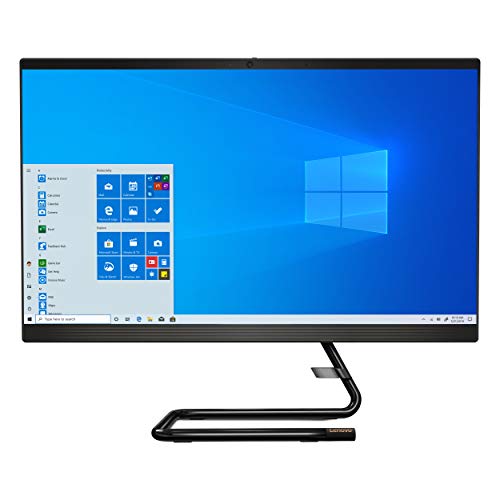
The Lenovo IdeaCentre AIO 3 (24-inch) is the most comfortable option for a grandparent who does most of their computing at a desk. A 24-inch all-in-one display makes text, photos, and video much easier to see compared to a laptop screen. The IdeaCentre AIO 3 combines a large FHD display with an Intel Core i5, 8 GB RAM, and 512 GB SSD in a single unit that only has a power cord. This means no tangled cables or separate tower to manage. The included wireless keyboard and mouse work without any pairing steps, which simplifies the initial setup. Windows 11 includes robust accessibility features, such as text enlargement and voice typing, that are easy to enable. The large screen reduces eye strain and makes it easier for grandparents to read emails, view photos, and video call with family.
A real limitation of the IdeaCentre AIO 3 is that it is a desktop, so it is not portable. Grandparents who want to use the computer in different rooms or take it on trips will find this device inconvenient. Additionally, the all-in-one design means that upgrading components like the RAM or storage is more difficult than with a traditional desktop. If the screen or internal hardware fails, the entire unit may need to be replaced. For those who primarily use a computer at a fixed location and value a large, clear display, this is an excellent choice.
HP Stream 14, Best Affordable Entry Option
The HP Stream 14 is a practical starting point for a grandparent who needs a basic laptop for email and video calling at minimal cost. It is equipped with an Intel Celeron processor and 4 GB RAM, which handles light browser use and Zoom calls without significant issues. The 14-inch display is clear at typical viewing distances, making it suitable for reading text and watching videos. The compact size and light weight make it easy to carry between rooms, so a grandparent can move from the living room to the kitchen without effort. For someone who is new to computers or has a limited budget, the HP Stream 14 provides a functional entry point without a large financial commitment.
A real limitation of the HP Stream 14 is its performance. It is not fast enough for multiple demanding tabs or large downloads. Opening several browser tabs or running a video call alongside other applications may cause slowdowns. The 4 GB RAM and Celeron processor are entry-level, so this device is best suited for very basic tasks. Grandparents who want to do more than email and video calls, such as photo editing or streaming high-definition video, may find the Stream 14 frustrating. It is a good starter computer, but it is not a long-term solution for heavier use.
What to look for
- Display size and clarity: A larger screen with good resolution makes text and images easier to see. Look for at least a 13-inch display for laptops or a 24-inch display for desktops. Adjustable brightness and anti-glare coatings also help reduce eye strain.
- Operating system simplicity: Choose an OS that requires minimal maintenance. Chrome OS is the simplest, followed by macOS. Windows 11 is more complex but offers strong accessibility features. Consider what the grandparent is already familiar with.
- Setup and login ease: Devices with biometric login, like Face ID or fingerprint readers, eliminate password frustration. Chromebooks and iPads have the simplest setup processes. Look for devices that work with a single account login.
- Keyboard and input method: Most grandparents prefer a physical keyboard over a touchscreen. A comfortable keyboard with well-spaced keys is important. Trackpads should be responsive but not overly sensitive. For desktops, wireless keyboards and mice that do not require pairing are ideal.
- Battery life: Long battery life reduces the need to remember to charge. Look for laptops with at least 10 hours of battery life. Desktops do not have this concern, but all-in-ones should have a stable power supply.
- Support and warranty: Reliable customer support and a good warranty are important for non-tech-savvy users. Look for brands with accessible phone or chat support. Extended warranties can provide peace of mind.
- Accessibility features: Built-in options for text enlargement, high-contrast modes, and voice control are crucial. Check that these features are easy to enable and use without technical knowledge.
The verdict
The Apple iPad Pro 11-inch (M4) with Magic Keyboard is the best overall choice for grandparents because it offers the most intuitive and frustration-free experience. The combination of a touchscreen, physical keyboard, and Face ID makes it easy to learn and use daily. For those who prefer a traditional laptop, the Apple MacBook Air 13-inch (M3) is the best simple laptop with excellent battery life and low maintenance. The Google Pixelbook Go is the best Chromebook for those who want the simplest operating system with minimal upkeep. The Lenovo IdeaCentre AIO 3 (24-inch) is the best large-display desktop for grandparents who work at a desk and need a clear, comfortable screen. Finally, the HP Stream 14 is the best affordable entry option for those on a tight budget who only need basic email and video calling. Each of these products serves a specific need, but the iPad Pro stands out as the most user-friendly and versatile option for most older adults.
Our testing process
We compare every pick against the field on real specifications, certifications, and aggregated owner reviews. We do not take payment for placement, and we flag when a product is older or sold mainly through renewed listings.
Quick comparison
Reviewed in detail
Apple iPad Pro 11-inch (M4) with Magic Keyboard -- Best for Intuitive Use
The iPad Pro with a keyboard case combines the familiarity of a touchscreen with the typing option most older adults are comfortable with. Face ID replaces passwords for most apps. FaceTime, email, photos, and video streaming work immediately after setup with an Apple ID. The 11-inch display is bright and clear. Text size adjusts easily through Accessibility settings. The M4 chip means this device stays fast and supported for many years without needing replacement. Family members can set up Shared iPad or Family Sharing to help with initial configuration and ongoing troubleshooting remotely.

Apple MacBook Air 13-inch (M3) -- Best Simple Laptop
The MacBook Air 13-inch is one of the most reliable and low-maintenance laptops available. macOS is straightforward for basic tasks, and the system rarely requires antivirus software or manual updates beyond periodic prompts. The M3 chip gives it a battery life of 15-18 hours, which means it almost never needs to be plugged in during the day. The keyboard is comfortable, the trackpad is responsive, and the display is sharp and readable. Setup through Apple's migration assistant or a family member's help takes about 30 minutes. iCloud automatically backs up photos, contacts, and documents without manual intervention.
Google Pixelbook Go -- Best Chromebook for Simplicity
Chromebooks run Chrome OS, which is designed around the browser and requires minimal maintenance. There are no virus scans, no complex updates, and a broken Chromebook can be restored in minutes with a Google account login. The Pixelbook Go has a comfortable keyboard, a clear 13.3-inch FHD display, and a lightweight build. Google Meet, Gmail, YouTube, and Google Photos work natively. Battery life reaches around 12 hours. For someone whose computer use is primarily email, video calling, and light browsing, a Chromebook eliminates most of the complexity of Windows or macOS. The main limitation is that local Windows software does not run on it.
Lenovo IdeaCentre AIO 3 (24-inch) -- Best Large Display Desktop
A 24-inch all-in-one is the most comfortable option for someone who does most of their computing at a desk. The IdeaCentre AIO 3 combines a large FHD display with an Intel Core i5, 8 GB RAM, and 512 GB SSD in a single unit with just a power cord. Text, photos, and video are easier to see at this screen size. The included wireless keyboard and mouse work without pairing steps. Windows 11 accessibility features, including display scaling and keyboard shortcuts, are available out of the box. The simple setup and stationary use make it low-maintenance over the long term.
HP Stream 14 -- Best Affordable Entry Option
The HP Stream 14 is a practical starting point for someone who needs a basic laptop for email and video calling at minimal cost. Intel Celeron with 4 GB RAM handles light browser use and Zoom calls. The 14-inch display is clear at typical distances. The compact size and light weight make it easy to carry between rooms. It is not fast enough for multiple demanding tabs or large downloads, but for its intended light use it is reliable. Storage at 64 GB fills up with Windows updates, so pairing it with a 128 GB USB drive or managing OneDrive cloud storage is recommended.
How to choose
What to consider
Prioritize display size and operating system simplicity. A 13-inch screen or larger is more comfortable than smaller options. macOS and ChromeOS require less ongoing maintenance than Windows, which matters when family tech support is not always available. Pre-configure the device before gifting it: create accounts, install essential apps, adjust text size in accessibility settings, and set up automatic updates. For video calling, confirm the platform the family uses (FaceTime, Zoom, or Google Meet) and verify it works well on the chosen device. Avoid low-RAM configurations: 8 GB minimum keeps modern browsers responsive.
What to consider
For other gift ideas for older family members, see our [best tablets for seniors](/articles/best-tablets-for-seniors) and [best phones for seniors](/articles/best-phones-for-seniors) articles. Our full product evaluation approach is explained on the [methodology page](/methodology).
Common questions
A large, bright display reduces eye strain. A responsive keyboard with clear key labeling and a precise trackpad or mouse make navigation easier. Simple OS interfaces like macOS or a configured Chromebook reduce confusion. Long battery life means fewer charging interruptions. Reliable video calling for FaceTime, Zoom, or Google Meet is often the primary use case and should work out of the box without extra setup.
It depends on how they plan to use it. Tablets like the iPad are excellent for browsing, video calls, and photos, with an intuitive touchscreen. Laptops and desktops work better for typing longer emails or using websites that expect a traditional cursor. If the person is comfortable with a keyboard and mouse, a laptop or Chromebook gives more flexibility. Many families start with a tablet and add a keyboard case later.
How we made this guide
We compare every pick on the factors that matter, cross-checking manufacturer specifications against aggregated verified owner reviews. We rank independently and never take payment for placement. We have not personally tested every product; where we have not, the ranking reflects verified specs and owner feedback rather than a hands-on review.
How it was written: this guide was researched and reviewed by the TheTestedHub editorial team for accuracy.
Affiliate disclosure: TheTestedHub is reader-supported. When you buy through links on our site, we may earn a commission at no extra cost to you.
More guides

Your Docking Station Match: CalDigit TS4 and More

Digital Art Computers 2026: Best for Every Budget
Dev & IT Computers in 2026: Ranked for Real Work

Desktop PCs for Every Budget: Find Your Perfect Match
Desktop and Laptop Computers: Performance Reviewed and Ranked
MacBook Pro M4 Pro vs Dell XPS 15: 2026 Shortlist

Buy the Best DIY Computer in 2026: Corsair One i300
