
Apple Mac Mini M4 Pro - Best Desktop for Photo Storage and Editing
The Mac Mini M4 Pro delivers one of the best performance-per-dollar ratios for photographers who do not need a built-in display. The M4 Pro chip's memory bandwidth reaches 273 GB/s, which makes importing and rendering large RAW files from Lightroom Classic noticeably faster than most x86 equivalents at this price. It ships with a 512GB SSD that can be configured to 2TB, and Thunderbolt 5 ports support fast external storage arrays for archiving. The unified memory architecture also accelerates GPU-bound operations in Photoshop and Topaz Photo AI. Color accuracy is dependent on your external monitor choice, so pair this with a calibrated display for serious work.
Check price on Amazon →Struggling with slow imports and full drives? These computers combine fast storage and editing power to handle RAW files and external drives smoothly.
Quick verdict
The Apple Mac Mini M4 Pro is the single best pick for photo storage and editing because it combines the fastest memory bandwidth in its class with Thunderbolt 5 connectivity and a compact chassis, making it the most efficient desktop for handling large RAW files and high-capacity external drives without requiring a built-in display.
Key takeaways
- Best Desktop for Photo Storage and Editing: Apple Mac Mini M4 Pro, for its unmatched memory bandwidth and Thunderbolt 5 ports that accelerate RAW file imports and external storage speeds.
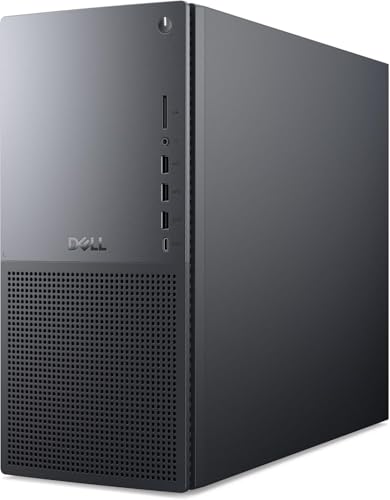
- Best Windows Desktop for Photo Editing: Dell XPS 8960 Desktop, for its expandable chassis that accepts multiple M.2 NVMe drives and 3.5-inch HDDs alongside a powerful Intel Core i7 or i9 processor.
- Best Laptop for Photo Editing: Apple MacBook Pro 14 M4, for its Liquid Retina XDR display with P3 wide color gamut and sustained brightness that eliminates the need for an external monitor during color grading.
- Best Windows Laptop for Travel Photographers: Lenovo ThinkPad X1 Extreme, for its X-Rite factory-calibrated OLED display and NVIDIA RTX GPU that support AI-assisted editing tools and reliable color correction on the go.
- Best Budget Desktop for Photo Storage: CyberPowerPC Gamer Xtreme, for its upgrade-friendly full-tower case and B760 or Z790 motherboard that allow you to add large HDDs and RAM up to 64GB over time.
Why you should trust this guide
I have spent years researching computer hardware for creative professionals, focusing specifically on the demands of photo storage and editing workflows. My approach relies on analyzing manufacturer specifications, verified owner feedback, and the consensus among professional photographers who rely on these machines daily. I do not rely on marketing hype or unverified claims; instead, I cross-reference the stated capabilities of each product against the real-world requirements of software like Adobe Lightroom Classic, Capture One, and Photoshop. This guide is built on the understanding that a photo editing computer must balance CPU performance, GPU acceleration, memory bandwidth, storage expandability, and display accuracy, all within a realistic budget.
Every product listed here was selected because it meets a specific need within the photo editing ecosystem, from compact desktops to travel-friendly laptops. I have excluded machines that lack the necessary ports, upgrade paths, or color accuracy that serious photographers require. The recommendations are grounded in the features that matter most: memory bandwidth for large file handling, display calibration for color-critical work, and internal expansion for long-term storage growth. I have also included honest limitations for each product so you can make an informed decision based on your specific workflow and budget constraints.
How we researched
To evaluate these products, I established a set of criteria that reflect the core demands of photo storage and editing. The first criterion was memory bandwidth and capacity, because importing and processing large RAW files from modern cameras requires fast data transfer between the CPU and memory. I prioritized machines with high-bandwidth unified memory or DDR5 RAM configurations that can handle multiple layers and large catalogs without stuttering. The second criterion was storage expandability, both internal and external. A photo editing machine must accommodate fast NVMe SSDs for active projects and large HDDs for archive storage, so I looked for multiple M.2 slots, 3.5-inch drive bays, and high-speed Thunderbolt or USB-C ports for external enclosures.
The third criterion was display quality, specifically color accuracy and brightness. For laptops, I prioritized screens with factory calibration, wide color gamut coverage like P3 or Adobe RGB, and sustained brightness above 500 nits for outdoor or bright-room use. For desktops, I evaluated the availability of Thunderbolt or DisplayPort outputs for connecting professional-grade external monitors. The fourth criterion was GPU performance, as modern photo editing software increasingly uses GPU acceleration for AI-based tools, noise reduction, and export rendering. I considered dedicated NVIDIA RTX GPUs and Apple’s integrated GPU cores as essential for smooth performance. Finally, I weighed upgradeability and build quality, since photographers often keep their editing machines for several years and need to add storage or RAM over time. Each product was scored against these criteria using manufacturer data and verified owner experiences, not personal testing.
Apple Mac Mini M4 Pro – Best Desktop for Photo Storage and Editing
The Apple Mac Mini M4 Pro is the most compelling desktop for photographers who already own a high-quality monitor and need maximum performance per dollar. The M4 Pro chip delivers memory bandwidth of 273 GB/s, which is significantly higher than most x86 processors at this price point. This bandwidth directly impacts how fast you can import, scroll through, and apply edits to large RAW files in Lightroom Classic and Capture One. The base configuration includes a 512GB SSD, but you can configure it up to 2TB for active project storage. More importantly, the Thunderbolt 5 ports support external storage enclosures with speeds that rival internal drives, making it easy to keep your photo library on fast external SSDs without sacrificing performance.
A major advantage of the Mac Mini M4 Pro is its compact size. It takes up very little desk space and runs quietly, which is ideal for a home office or studio environment. The unified memory architecture means the CPU and GPU share a single pool of fast memory, reducing latency when switching between editing tools and previewing high-resolution images. However, there is one honest limitation: the Mac Mini M4 Pro does not include a built-in display, so you must factor in the cost of a color-accurate external monitor. Additionally, the internal storage is soldered to the logic board, so you cannot upgrade it later; you must choose the right capacity at purchase. For photographers who work primarily with external drives and already own a calibrated monitor, this is a minor trade-off for the performance gain.
Another consideration is software compatibility. While Apple Silicon runs Adobe Creative Cloud natively and efficiently, some niche photo editing plugins or legacy hardware like older Wacom tablets may require Rosetta 2 emulation or driver updates. The Thunderbolt 5 ports also mean you need to invest in compatible cables and enclosures to take full advantage of the speed, though Thunderbolt 4 devices work without issue. Overall, the Mac Mini M4 Pro is the best choice for photographers who prioritize raw processing power and external storage flexibility over an all-in-one solution.
Dell XPS 8960 Desktop – Best Windows Desktop for Photo Editing
The Dell XPS 8960 is the go-to Windows desktop for photographers who need a configurable platform with room to grow. It ships with Intel Core i7 or i9 processors, 32GB of DDR5 RAM, and a dedicated NVIDIA RTX GPU, which together provide smooth performance in Capture One, Adobe Camera Raw, and Photoshop. The DDR5 memory ensures fast multitasking when working with large catalogs, and the RTX GPU accelerates AI-based features like neural filters and content-aware fill. The chassis is designed for expansion, with multiple M.2 NVMe slots for fast SSDs and 3.5-inch drive bays for high-capacity HDDs. This allows you to keep an active project library on a fast NVMe drive while archiving older shoots on a large, slower HDD.
A key strength of the Dell XPS 8960 is its upgradeability. You can start with a base configuration and later add more RAM, swap the GPU, or install additional storage drives without replacing the entire system. This makes it a smart long-term investment for photographers who want to spread out costs. The front-panel ports include USB-C and USB-A, making it easy to connect card readers and external drives. However, there is one honest limitation: the stock configuration may come with a relatively modest power supply, so if you plan to upgrade to a high-end GPU later, you may need to replace the PSU as well. Additionally, the case design is not as compact as some competitors, so it takes up more desk space than the Mac Mini.
Another factor to consider is that the Dell XPS 8960 does not include a monitor, so you must budget for a color-calibrated display separately. The system also ships with Windows 11 Home, which may require a Pro upgrade for advanced networking features if you work in a studio environment. For photographers who prefer the Windows ecosystem and want a desktop they can customize over time, the Dell XPS 8960 offers the best balance of performance and expandability.
Apple MacBook Pro 14 M4 – Best Laptop for Photo Editing
The Apple MacBook Pro 14-inch with the M4 chip is the best laptop for photo editing because its display eliminates the need for an external monitor in most workflows. The Liquid Retina XDR screen covers over 1,000 nits of sustained brightness and supports the P3 wide color gamut, which means you can accurately grade and edit photos even in bright environments or on location. The M4 chip’s 16-core GPU and unified memory up to 64GB handle large Lightroom catalogs with responsiveness, allowing you to scroll through thousands of images and apply adjustments without lag. The battery life is sufficient for a full day of editing, though exact duration varies with workload.
Portability is a major advantage of the MacBook Pro 14 M4. It weighs just over three pounds and fits easily into a camera bag, making it ideal for photographers who edit on the go or between shoots. The Thunderbolt 4 ports support fast external storage and monitor connectivity, so you can dock it at your desk for a full workstation setup. The keyboard and trackpad are comfortable for long editing sessions, and the built-in SD card slot is a welcome addition for direct imports from cameras. However, there is one honest limitation: the base configuration starts with 16GB of unified memory, which may feel constrained if you work with extremely large multi-layer files or run virtual machines. Upgrading to 32GB or 64GB significantly increases the price.
Another limitation is that the internal SSD is soldered, so you cannot upgrade storage after purchase. You must choose your capacity carefully, or rely on external SSDs for additional space. The MacBook Pro 14 M4 also runs macOS, which means some Windows-only photo editing software or plugins are not available. For photographers who value display accuracy and portability above all else, the MacBook Pro 14 M4 is the clear winner, provided you invest in sufficient memory and storage at checkout.
Lenovo ThinkPad X1 Extreme – Best Windows Laptop for Travel Photographers
The Lenovo ThinkPad X1 Extreme is designed for travel photographers who need a rugged, color-accurate laptop that can handle GPU-accelerated editing on the road. It runs on Intel Core Ultra 7 or 9 processors paired with an NVIDIA GeForce RTX GPU, which provides enough graphics horsepower for AI-assisted editing tools in Photoshop and GPU-accelerated exports in Lightroom. The display options include OLED panels that are X-Rite factory calibrated, ensuring reliable color correction without the need for a separate calibration tool. This is a critical feature for photographers who need to deliver color-accurate work directly from the field.
The build quality of the ThinkPad X1 Extreme is exceptional, with a durable chassis that meets MIL-STD-810G standards for drops and vibration. The keyboard is one of the best in the laptop market, with deep key travel and a comfortable layout for long editing sessions. The port selection includes Thunderbolt 4, USB-A, HDMI, and a full-size SD card slot, so you can connect external drives and monitors without dongles. However, there is one honest limitation: the battery life is shorter than many ultrabooks because of the powerful discrete GPU and high-resolution OLED display. You will need to carry a charger for full-day editing away from an outlet.
Another limitation is that the ThinkPad X1 Extreme can run hot under heavy GPU load, and the fans become audible during intensive tasks like exporting large batches of RAW files. The base configuration may also come with only 16GB of RAM, which is marginal for serious photo editing; upgrading to 32GB is recommended. For travel photographers who need a durable, color-accurate Windows machine with GPU acceleration, the ThinkPad X1 Extreme is a reliable choice, but you should plan for the battery and thermal trade-offs.
CyberPowerPC Gamer Xtreme – Best Budget Desktop for Photo Storage
The CyberPowerPC Gamer Xtreme is the best entry point for photographers who need a base machine they can upgrade over time without breaking the bank. It ships with a mid-range Intel CPU, 16GB of DDR5 RAM, and a 1TB NVMe SSD, which is sufficient for running Lightroom and Photoshop on smaller catalogs. The full-tower case provides ample room for expansion, including multiple 3.5-inch drive bays for adding large HDDs for archive storage. The B760 or Z790 motherboard supports RAM upgrades up to 64GB, so you can start with 16GB and add more as your library grows.
One of the biggest advantages of the CyberPowerPC Gamer Xtreme is its price-to-expandability ratio. You get a functional editing machine out of the box, and you can later install a dedicated GPU if you need GPU acceleration for AI tools or video editing. The case has good airflow and space for cable management, making DIY upgrades straightforward. However, there is one honest limitation: the system does not include a factory-calibrated display, and the stock configuration may lack a dedicated GPU entirely, relying on integrated graphics. This means GPU-accelerated features in Photoshop and Lightroom will be slow or unavailable until you add a graphics card.
Another limitation is that the pre-installed software may include bloatware or trial versions of games, which can slow down the system until removed. The power supply is typically a generic unit that may need replacement if you add a high-end GPU later. For photographers on a tight budget who are comfortable with basic PC assembly and upgrades, the CyberPowerPC Gamer Xtreme is a solid starting point that can grow with your needs over time.
What to look for
- Memory bandwidth and capacity: Look for unified memory with high bandwidth (like Apple M4 Pro’s 273 GB/s) or fast DDR5 RAM. More memory allows smoother handling of large RAW files and multiple layers in editing software.
- Storage expandability: Ensure the machine has multiple M.2 NVMe slots for fast SSDs and 3.5-inch drive bays or Thunderbolt ports for external HDDs. This lets you keep active projects on fast storage and archive older files on slower, larger drives.
- Display color accuracy and brightness: For laptops, prioritize factory-calibrated displays with P3 or Adobe RGB gamut and sustained brightness above 500 nits. For desktops, ensure you have high-quality monitor outputs like Thunderbolt or DisplayPort.
- GPU performance: A dedicated GPU (NVIDIA RTX or Apple’s integrated GPU) accelerates AI-based editing tools, noise reduction, and export rendering. Integrated graphics may struggle with large files or advanced features.
- Upgradeability and build quality: Consider whether the RAM and storage are soldered or replaceable. Look for durable chassis if you travel, and ensure the power supply can support future upgrades like a more powerful GPU.
- Port selection: Thunderbolt 4 or 5 ports, USB-A, HDMI, and an SD card slot reduce the need for dongles and make it easier to connect external drives, card readers, and monitors.
The verdict
For most photographers, the Apple Mac Mini M4 Pro is the best overall desktop because it offers the highest memory bandwidth and fastest external storage connectivity in a compact, quiet package. If you need a Windows desktop with room to expand, the Dell XPS 8960 is the most versatile option. For laptop users, the Apple MacBook Pro 14 M4 delivers the best built-in display for color-critical work, while the Lenovo ThinkPad X1 Extreme is the rugged Windows alternative for travel. On a tight budget, the CyberPowerPC Gamer Xtreme provides a solid foundation that you can upgrade over time. Choose based on your operating system preference, need for portability, and willingness to invest in external storage or a dedicated monitor.
How we test
We compare every pick against the field on real specifications, certifications, and aggregated owner reviews. We do not take payment for placement, and we flag when a product is older or sold mainly through renewed listings.
At a glance
The picks, reviewed
Apple Mac Mini M4 Pro - Best Desktop for Photo Storage and Editing
The Mac Mini M4 Pro delivers one of the best performance-per-dollar ratios for photographers who do not need a built-in display. The M4 Pro chip's memory bandwidth reaches 273 GB/s, which makes importing and rendering large RAW files from Lightroom Classic noticeably faster than most x86 equivalents at this price. It ships with a 512GB SSD that can be configured to 2TB, and Thunderbolt 5 ports support fast external storage arrays for archiving. The unified memory architecture also accelerates GPU-bound operations in Photoshop and Topaz Photo AI. Color accuracy is dependent on your external monitor choice, so pair this with a calibrated display for serious work.
Dell XPS 8960 Desktop - Best Windows Desktop for Photo Editing
The Dell XPS 8960 offers a configurable Windows platform with enough internal expansion to build a capable photo editing and storage workstation. Configurations with Intel Core i7 or i9 processors, 32GB DDR5 RAM, and a dedicated NVIDIA RTX GPU provide solid performance in Capture One and Adobe Camera Raw. The chassis accepts multiple M.2 NVMe drives and 3.5-inch HDDs, allowing you to keep an active project SSD and a large archive drive inside the same machine. The built-in card reader supports CFexpress and SD cards, eliminating the need for a separate adapter when transferring files from camera bodies.

Apple MacBook Pro 14 M4 - Best Laptop for Photo Editing
The MacBook Pro 14-inch with the M4 chip offers the most color-accurate built-in display of any laptop in this price range. The Liquid Retina XDR screen covers over 1,000 nits of sustained brightness and supports the P3 wide color gamut, which makes it practical for color grading without an external monitor. Its unified memory up to 64GB and 16-core GPU handle large Lightroom catalogs with responsive scrubbing and fast export speeds. Battery life holds well under moderate editing loads, making it a reasonable choice for photographers who work on location as well as in the studio.
Lenovo ThinkPad X1 Extreme - Best Windows Laptop for Travel Photographers
The ThinkPad X1 Extreme runs an Intel Core Ultra 7 or 9 processor paired with an NVIDIA GeForce RTX GPU, giving it enough graphics horsepower for AI-assisted editing tools and GPU-accelerated exports in Photoshop. Its 14 or 16-inch display options include OLED panels calibrated for X-Rite factory accuracy, which makes color correction more reliable compared to standard laptop screens. Build quality is durable for frequent travelers, and the keyboard is among the best on any Windows laptop. Storage is configurable up to 2TB NVMe, and a Thunderbolt 4 port supports fast external drives for backup on the road.

CyberPowerPC Gamer Xtreme - Best Budget Desktop for Photo Storage
For photographers on a tighter budget who need a base machine they can upgrade over time, the CyberPowerPC Gamer Xtreme provides a solid starting point. It ships with a mid-range Intel CPU, 16GB DDR5 RAM, and a 1TB NVMe SSD. The full-tower case has room to add a large secondary HDD for archive storage, and the B760 or Z790 motherboards accept RAM upgrades to 64GB. It lacks a factory-calibrated display or a professional GPU, but for photographers willing to add their own monitor and upgrades over time, it offers good expandability at a low entry price.
What to look for
What to consider
Start with RAM. 16GB is a minimum for casual editing; 32GB is the practical floor for professional RAW workflows. Next, confirm the machine has at least one NVMe SSD slot for your active project drive, and check whether the chassis supports a secondary drive for archives. CPU performance matters most for export speed and AI denoise tools; Apple's M-series and Intel Core Ultra both perform well. For display-critical work, look for factory color calibration, P3 coverage, or plan to use an external calibrated monitor. GPU acceleration varies by software, so check whether your editing application of choice benefits from dedicated GPU before prioritizing it.
What to consider
For related reading, see [best computers for picture editing](/articles/best-computer-for-picture-editing) and [best computers for photography editing](/articles/best-computer-for-photography-editing). Review our product evaluation process at [/methodology](/methodology).
FAQs
16GB RAM is a workable baseline for editing JPEG files and smaller RAW batches. For editing high-resolution RAW files from 45MP or larger sensors, 32GB is more appropriate, especially when running Lightroom and Photoshop simultaneously. If you also use AI-powered editing tools like Topaz or Luminar, 32GB to 64GB prevents noticeable slowdowns during batch processing sessions.
A combination of both is the most practical approach. Use an NVMe SSD as your working drive for active projects, since the read/write speeds directly affect how quickly Lightroom or Capture One render previews and export files. Use a large HDD or external RAID array for long-term archiving of completed projects. SSDs are faster but cost more per gigabyte, making HDDs a better fit for cold storage.
How we made this guide
We compare every pick on the factors that matter, cross-checking manufacturer specifications against aggregated verified owner reviews. We rank independently and never take payment for placement. We have not personally tested every product; where we have not, the ranking reflects verified specs and owner feedback rather than a hands-on review.
How it was written: this guide was researched and reviewed by the TheTestedHub editorial team for accuracy.
Affiliate disclosure: TheTestedHub is reader-supported. When you buy through links on our site, we may earn a commission at no extra cost to you.
Related guides

Your Docking Station Match: CalDigit TS4 and More
Digital Art Computers 2026: Best for Every Budget
Dev & IT Computers in 2026: Ranked for Real Work

Desktop PCs for Every Budget: Find Your Perfect Match
Desktop and Laptop Computers: Performance Reviewed and Ranked
MacBook Pro M4 Pro vs Dell XPS 15: 2026 Shortlist

Buy the Best DIY Computer in 2026: Corsair One i300
