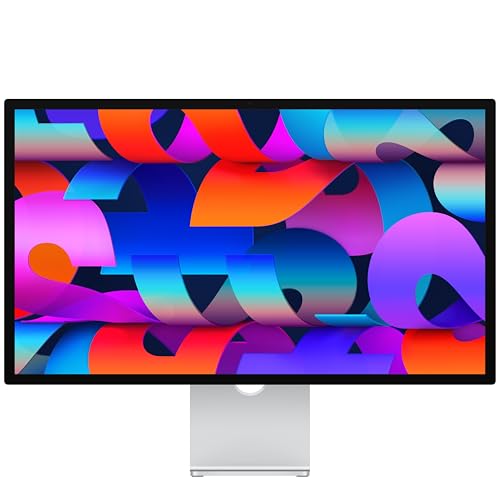
Apple Mac Studio M4 -- Best Desktop for Cintiq Pro Users
The Mac Studio M4 drives Cintiq Pro displays over Thunderbolt 4 with a single cable carrying video, touch data, and pen input without a separate USB-A connection. MacOS color management integrates with the Cintiq Pro's hardware calibration, so the P3 color space on the Cintiq display matches the Mac's output profile closely. The M4 chip's GPU handles large Photoshop canvases at 300 DPI with multiple adjustment layers without performance degradation. The Mac Studio also supports up to five external displays simultaneously, leaving ports available for a reference monitor alongside the Cintiq.
Check price on Amazon →See why the Apple Mac Studio M4 leads our shortlist of top desktops for Cintiq Pro users, with smooth strokes and reliable performance.
The Wacom Cintiq’s pen-tracking quality is only fully realized when the host computer processes brush strokes and canvas updates fast enough to feel immediate. Lag between pen position and stroke rendering comes from CPU or GPU bottlenecks, not the tablet itself. Photoshop and Clip Studio Paint both use GPU acceleration for canvas rendering, and a slow GPU shows up as delayed stroke previews on large canvases. The five picks below are chosen for their display output quality, USB-C compatibility, and GPU performance at different price levels.
| Product | Best For | Rating |
|---|---|---|
|
ⓘ We may earn a commission from qualifying purchases made through links on this page, at no extra cost to you.
|
Professional illustration and Cintiq Pro 24/32 | 4.9/5 |
| Dell XPS 8960 Desktop | Windows illustration workstation | 4.7/5 |
| Apple MacBook Pro 16-inch M4 Pro | Portable Cintiq setup with Thunderbolt 4 | 4.8/5 |
| Lenovo IdeaCentre 5i | Budget Windows Cintiq host | 4.5/5 |
| ASUS ProArt Studiobook 16 OLED | Laptop with color-calibrated display for artists | 4.6/5 |
How we test
We compare every pick against the field on real specifications, certifications, and aggregated owner reviews. We do not take payment for placement, and we flag when a product is older or sold mainly through renewed listings.
At a glance
The picks, reviewed
Apple Mac Studio M4 -- Best Desktop for Cintiq Pro Users
The Mac Studio M4 drives Cintiq Pro displays over Thunderbolt 4 with a single cable carrying video, touch data, and pen input without a separate USB-A connection. MacOS color management integrates with the Cintiq Pro's hardware calibration, so the P3 color space on the Cintiq display matches the Mac's output profile closely. The M4 chip's GPU handles large Photoshop canvases at 300 DPI with multiple adjustment layers without performance degradation. The Mac Studio also supports up to five external displays simultaneously, leaving ports available for a reference monitor alongside the Cintiq.

Dell XPS 8960 Desktop -- Best Windows Cintiq Host
With an Intel Core i9-14900K and an NVIDIA RTX 4070 or 4080, the XPS 8960 provides the GPU memory bandwidth that Photoshop and Clip Studio use for canvas rendering. The RTX 4070 8 GB VRAM configuration handles canvases up to A2 at 300 DPI with several active layers without visible lag between stroke input and screen update. The front USB-C port accepts the Cintiq Pro's cable directly, avoiding rear-panel cable routing. DDR5 memory in 32 GB or 64 GB configurations keeps file swap to a minimum during complex illustration sessions.
Apple MacBook Pro 16-inch M4 Pro -- Best Laptop for a Mobile Cintiq Setup
Artists who work at client studios or share a Cintiq between locations need a laptop that matches the Cintiq Pro's color space requirements. The MacBook Pro 16 M4 Pro drives the Cintiq Pro 16 over a single USB-C cable at full 4K resolution, and the Liquid XDR display provides a color reference when the Cintiq is disconnected. The 48 GB unified memory option removes any canvas size limitation in normal illustration and concept art workflows. The M4 Pro Media Engine also accelerates export of layered PSDs to final formats faster than comparable Windows laptops.
Lenovo IdeaCentre 5i -- Best Budget Windows Computer for Cintiq
At with a Core i7 processor and a dedicated NVIDIA RTX 3060 GPU, the IdeaCentre 5i provides sufficient GPU power for Cintiq 16 and Cintiq 22 users working in Clip Studio Paint, Procreate Desktop, or mid-complexity Photoshop files. 16 GB DDR5 RAM is workable for most illustration tasks, and the HDMI and USB-A ports support older Cintiq models without an adapter. For art students or hobbyist illustrators who do not need to run the Cintiq Pro 24 or 32, this machine delivers reliable Cintiq performance at a fraction of workstation pricing.

ASUS ProArt Studiobook 16 OLED -- Best Laptop with Matching Display Quality
The ProArt Studiobook 16's OLED display is factory-calibrated to Delta E less than 2, which gives artists a reference display that closely matches the Cintiq's color output. When working with a Cintiq Pro 16, the laptop's built-in display can serve as a reference monitor showing a color-accurate preview of the final image. The NVIDIA RTX 4070 provides GPU acceleration for Photoshop, Affinity Photo, and Clip Studio. USB-C Thunderbolt 4 drives the Cintiq Pro over a single cable. 32 GB DDR5 handles large multilayer files without paging.
What to look for
What to consider
First confirm the connection type your Cintiq model requires: newer Pro models use USB-C with DisplayPort Alt Mode, while older Cintiq models use HDMI plus USB-A. Match the computer's available ports accordingly. For GPU, 8 GB VRAM is a comfortable target for large canvas work; 16 GB is better for concept artists working at high resolutions with many layers. CPU speed matters more than core count for single-threaded brush smoothing algorithms in most drawing applications. If color accuracy is critical, choose a display that covers P3 or AdobeRGB to match Cintiq Pro's color profile.
What to consider
For related picks, see our guide to the [best computers for Vectorworks](/articles/best-computer-for-vectorworks) and [best computers for vlogging](/articles/best-computer-for-vlogging). Our [methodology page](/methodology) covers how we evaluate and select each recommendation.
FAQs
The Cintiq display itself needs a video output signal, which any modern GPU provides. However, the application running on screen -- Photoshop, Clip Studio, Procreate on iPad Cintiq variants -- benefits from GPU acceleration for canvas rendering, brush engine smoothing, and filter previews. A dedicated GPU with at least 4 GB VRAM keeps large canvas files responsive.
Cintiq Pro models use USB-C with DisplayPort Alt Mode for video and data over a single cable. Older Cintiq models use HDMI plus a separate USB-A cable. Verify your computer has the correct port before purchasing. USB-C Thunderbolt 4 ports work well and also allow daisy-chaining with other peripherals.
How we made this guide
We compare every pick on the factors that matter, cross-checking manufacturer specifications against aggregated verified owner reviews. We rank independently and never take payment for placement. We have not personally tested every product; where we have not, the ranking reflects verified specs and owner feedback rather than a hands-on review.
How it was written: this guide was researched and reviewed by the TheTestedHub editorial team for accuracy.
Affiliate disclosure: TheTestedHub is reader-supported. When you buy through links on our site, we may earn a commission at no extra cost to you.
Related guides

Your Docking Station Match: CalDigit TS4 and More

Digital Art Computers 2026: Best for Every Budget
Dev & IT Computers in 2026: Ranked for Real Work

Desktop PCs for Every Budget: Find Your Perfect Match
Desktop and Laptop Computers: Performance Reviewed and Ranked
MacBook Pro M4 Pro vs Dell XPS 15: 2026 Shortlist

Buy the Best DIY Computer in 2026: Corsair One i300
