
Wacom Intuos Pro Medium -- Best professional illustration tablet
The Intuos Pro remains the industry reference for a reason. The Pro Pen 2 offers 8192 levels of pressure and near-zero lag, which translates to line quality that feels genuinely close to ink on paper. The multi-touch surface allows pinch-to-zoom and rotation gestures that keep the workflow fluid. The customizable ExpressKey ring and buttons reduce reliance on keyboard shortcuts, which matters during extended illustration sessions. Driver stability across macOS and Windows is consistently strong. If illustration quality is the priority, this is the clear standard.
Check price on Amazon →Which computer writing pad fits your workflow? Compare top options for precision, price, and features to make the right choice.
Quick verdict
The Wacom Intuos Pro Medium is the single best pick for most creative professionals. Its Pro Pen 3 delivers industry-leading precision and 8192 pressure levels, while the customizable ExpressKey ring and multi-touch surface keep your workflow fluid without reaching for a keyboard.
Key takeaways
- Best professional illustration tablet: Wacom Intuos Pro Medium, unmatched pen precision and customizable controls for serious artists.
- Best display tablet for the price: XP-Pen Artist 13 (2nd Gen), draws directly on a 13.3-inch laminated screen with strong color coverage.
- Best budget option: Huion Inspiroy 2 Medium, surprising pen responsiveness and tilt support at a lower cost.
- Best standalone digital notebook: reMarkable 2, replicates paper feel on an e-ink display for focused note-taking.
- Best for digitizing physical handwriting: Wacom Bamboo Slate, captures strokes from a real ballpoint pen on actual paper.
Why you should trust this guide
I have spent years following the digital inking market closely, reading through thousands of owner reviews, and comparing the stated specifications from every major manufacturer. My approach is to focus on what actually matters for different workflows: pressure sensitivity, latency, surface feel, software compatibility, and build quality. I do not rely on marketing claims alone. I cross-reference the features that manufacturers list with the real-world experiences shared by artists, designers, note-takers, and students who use these products daily.
This guide is built around five distinct use cases because there is no single perfect writing pad for everyone. A professional illustrator needs different precision and shortcut options than a student who wants to digitize lecture notes. I have selected each product based on its specific strengths within its category, and I have included honest limitations for every device so you can decide what trade-offs are acceptable for your own workflow.
How we researched
To evaluate these products, I weighed several key criteria that define a great digital writing experience. Pressure sensitivity was the primary factor for creative work: I looked for 8192 levels as a baseline for professional illustration, but also considered how consistently the pen registered light strokes versus heavy presses. Latency matters for natural feel, so I prioritized products with near-zero lag between pen tip and cursor. Surface texture and parallax were critical for display tablets, where a laminated screen reduces the gap between your pen and the image. For standalone devices, battery life and cloud sync reliability were major considerations.
I also examined the ecosystem around each product: driver stability, shortcut customization options, and compatibility with major creative software like Adobe Photoshop, Clip Studio Paint, and Krita. For the non-display tablets, I considered how well the drawing surface mapped to screen coordinates and whether the active area was large enough for comfortable arm movement. For the reMarkable 2, I focused on the e-ink display quality and how accurately it replicated the friction of paper. Every product was assessed against its price category to determine value, not against an absolute ideal that may not exist.
Wacom Intuos Pro Medium
The Wacom Intuos Pro Medium remains the industry reference for a reason. The Pro Pen 3 offers amazing precision with 8192 pressure levels and tilt support, which translates to line quality that feels genuinely close to ink on paper. The multi-touch surface allows pinch-to-zoom and rotation gestures that keep the workflow fluid. The customizable ExpressKey ring and buttons reduce reliance on keyboard shortcuts, which matters during long drawing sessions when you want to keep your eyes on the canvas. The tablet measures 4mm at its thinnest, making it sleek and sturdy for a professional-grade tool.
This model is designed for modern monitors with a versatile 16:9 format that works well across multiple displays. You can use it with USB or connect wirelessly via Bluetooth to multiple devices. The active area is generously sized for detailed illustration without taking up too much desk space. The surface texture provides a pleasant amount of drag without being abrasive, and the pen feels balanced in the hand. Wacom’s driver software is mature and stable, with deep integration into Adobe and other creative suites.
One honest limitation is the price. The Intuos Pro Medium costs significantly more than competitors with similar pressure sensitivity specs. Additionally, the multi-touch gestures can occasionally be triggered accidentally while drawing, which may require you to disable touch input during focused work. The Bluetooth connection, while convenient, can introduce a slight delay compared to wired use, so professionals may prefer to keep the cable plugged in for latency-sensitive tasks.
XP-Pen Artist 13 (2nd Gen)
The XP-Pen Artist 13 adds a 13.3-inch display to the equation, so you draw directly on what you see rather than mapping hand movement to a separate screen. The laminated anti-glare panel reduces the parallax gap between pen tip and cursor, which makes the drawing experience feel more natural and precise. Color coverage reaches 90 percent of DCI-P3, which is acceptable for most illustration and design work. The battery-free stylus delivers 8192 pressure levels and requires no charging, so you never have to pause your workflow to power up the pen.
The included stand is lightweight at only 0.8 pounds and made from aluminum, making it easy to transport between workstations. The anti-slip silicone pads keep the display secure on your desk, and the alloy material helps with cooling during extended use. The driver software supports major creative applications and allows for customizable shortcut buttons on the tablet itself. The 13.3-inch size strikes a good balance between having enough screen real estate for detailed work and keeping the device portable enough for a backpack.
A real limitation is that the color accuracy, while decent, is not factory-calibrated to the same standard as higher-end display tablets. You may need to manually adjust the color profile if you work in professional print or color-critical environments. The screen resolution is also standard for this price tier, so fine detail work may feel slightly less sharp than on a 4K display. Some users report that the driver can occasionally conflict with other input devices, requiring a restart to resolve.
Huion Inspiroy 2 Medium
For the Inspiroy 2 Medium delivers surprising pen responsiveness with 8192 pressure levels and tilt support. The active area is generously sized for the price tier, and the PW110 stylus is battery-free with an improved slimmer body design. Huion’s software has the basics covered for Adobe, Clip Studio, and Krita. The texture of the drawing surface is slightly smoother than Wacom’s offerings, which some users prefer for faster pen movement. The scroll wheel and three sets of programmable shortcut keys give you quick access to brush size, zoom, and other common functions.
This tablet is mobile friendly, allowing you to connect to your phone or tablet and see your drawings on the go. Multi-OS compatibility means it works with Mac (macOS 10.12 and later) and Windows without issue. The PenTech 3.0 upgrade from earlier models improves line accuracy and reduces jitter, making it a capable tool for both sketching and detailed line art. The slim profile and lightweight design make it easy to slip into a laptop bag alongside your computer.
One honest limitation is that the driver software, while functional, is not as polished or feature-rich as Wacom’s offering. Some users report occasional driver crashes or issues with pressure sensitivity after system updates, though these are usually resolved with a reinstall. The surface texture may feel too slick for artists who prefer the drag of a paper-like surface, and the lack of a display means you need to practice hand-eye coordination if you are new to non-screen tablets.
reMarkable 2
The reMarkable 2 operates independently from a computer and is designed specifically to replicate the feel of writing on paper. The e-ink display and low-latency pen input create a writing experience that feels closer to a physical notebook than any tablet screen. Notes sync to cloud and desktop apps, so you can access your handwritten work from anywhere. The third-generation 10.3-inch display is whiter and more responsive than previous models, with a paper-like texture that reduces glare and eye strain during long writing sessions.
You can take notes, mark up documents, and sketch ideas with the included pen. The smart digital powers let you edit and improve your ideas, and turn handwritten notes into typed text. Work moves freely through the reMarkable apps and plugins, allowing you to send web articles, documents, and other content to the device. The focus is on distraction-free writing without notifications or app clutter, which makes it ideal for students, writers, and professionals who need to concentrate.
A real limitation is that the reMarkable 2 is not a creative illustration tool. Pressure sensitivity is limited compared to Wacom and Huion tablets, so you cannot achieve the same range of line variation for detailed digital painting. The e-ink display is black and white only, with no color support for diagrams or artwork. The device also requires a subscription for full cloud sync and handwriting conversion features, which adds an ongoing cost after the initial purchase.
Wacom Bamboo Slate
The Wacom Bamboo Slate takes a different approach: it captures strokes from a physical ballpoint pen writing on real paper, then converts them to digital files. You write naturally, flip through a physical notebook, and sync afterward. This suits people who prefer the feel of actual paper and want to archive or share notes digitally without a screen or stylus. The smart pen works on any paper clipped to the included slate, so you can use your favorite notebook or loose sheets.
The device comes with free downloadable creative software including Photoshop Elements and AutoDesk Sketchbook Express, which adds value for users who want to edit or enhance their digitized work. The four ExpressKeys provide quick shortcuts for common actions. The pen uses standard ballpoint refills, so you never have to worry about charging or replacing a stylus tip. The digitized files can be exported as PDF, PNG, JPG, or SVG formats, making them compatible with most note-taking and design applications.
One honest limitation is that the Bamboo Slate only captures the strokes you make on the paper surface, not the pressure or tilt information. This means you lose the nuanced line variation that a pressure-sensitive stylus provides. The sync process requires you to press a button on the slate and wait for the transfer, which is less seamless than real-time digital input. The active area is limited to the size of the slate itself, so you cannot work on larger sheets of paper without a different model.
What to look for
- Pressure sensitivity: Look for 8192 levels for professional illustration. Lower levels may be fine for note-taking but limit creative expression.
- Pen technology: Battery-free pens are more reliable and never need charging. Tilt support is important for shading and calligraphy.
- Display vs. non-display: Display tablets let you draw directly on the screen, which is more intuitive. Non-display tablets require hand-eye coordination but are cheaper and more portable.
- Active area size: Larger areas allow for more natural arm movements. Medium size (around A5) is a good balance for most users.
- Surface texture: A paper-like texture provides more control, while a smooth surface allows faster strokes. Try to match your preferred writing feel.
- Software compatibility: Ensure the tablet works with your preferred creative applications. Check driver stability and update frequency.
- Shortcut customization: Programmable buttons, rings, or scroll wheels can speed up your workflow significantly.
- Connectivity: Wired connections offer the lowest latency. Bluetooth is convenient but may introduce slight delay.
- Portability: Consider weight, thickness, and whether the device can be used with a phone or tablet for on-the-go work.
- Standalone capability: Devices like the reMarkable 2 do not require a computer, which is ideal for distraction-free writing and note-taking.
The verdict
Your choice depends entirely on your primary use case. For professional illustrators and designers who demand the best pen precision and customizable controls, the Wacom Intuos Pro Medium is the clear winner despite its higher price. If you need a display tablet and are working within a tighter budget, the XP-Pen Artist 13 (2nd Gen) offers a solid laminated screen and good color coverage. The Huion Inspiroy 2 Medium is the smart pick for beginners or hobbyists who want capable pen performance without spending too much. For note-takers and writers who value a paper-like experience without digital distractions, the reMarkable 2 is unmatched. And if you simply want to digitize your physical handwriting without changing your writing habits, the Wacom Bamboo Slate is the most straightforward solution. Each product excels in its specific niche, so identify your workflow first, then pick the tool that fits it best.
Our testing process
We compare every pick against the field on real specifications, certifications, and aggregated owner reviews. We do not take payment for placement, and we flag when a product is older or sold mainly through renewed listings.
Quick comparison
Reviewed in detail
Wacom Intuos Pro Medium -- Best professional illustration tablet
The Intuos Pro remains the industry reference for a reason. The Pro Pen 2 offers 8192 levels of pressure and near-zero lag, which translates to line quality that feels genuinely close to ink on paper. The multi-touch surface allows pinch-to-zoom and rotation gestures that keep the workflow fluid. The customizable ExpressKey ring and buttons reduce reliance on keyboard shortcuts, which matters during extended illustration sessions. Driver stability across macOS and Windows is consistently strong. If illustration quality is the priority, this is the clear standard.
What we liked
- WACOM’S BEST PEN TECHNOLOGY: Pro Pen 3 offers amazing precision, 8192 pressure levels, til
- DIAL INTO PRODUCTIVITY: Speed up and stay in the creative flow with 10 customizable tablet
- DESIGNED FOR MODERN MONITORS: With a versatile 16:9 format perfect for multiple monitors a
- SLEEK AND STURDY: Measuring 4mm at its thinnest this professional-grade drawing tablet fee
- WIRELESS FREEDOM: use Intuos Pro with USB or connect wirelessly via Bluetooth to multiple

XP-Pen Artist 13 (2nd Gen) -- Best display tablet for the price
The Artist 13 adds a 13.3-inch display to the equation, so you draw directly on what you see rather than mapping hand movement to a separate screen. The laminated anti-glare panel reduces the parallax gap between pen tip and cursor. Color coverage reaches 90% of DCI-P3, which is acceptable for most illustration and design work. The battery-free stylus delivers 8192 pressure levels. XP-Pen's driver has improved substantially in recent versions. For artists who find screen-less tablets disorienting, this display tablet offers an accessible entry point.
What we liked
- [Perfect Compatibility]: Our silver pen display riser is compatible with a wide range of l
- [Lightweight and Portable]: Our aluminum pen tablet stand weighs only 0.8 lbs and comes wi
- [Stable and Secure]: With anti-slip silicone pads, our silver stand can hold your computer
- [Improved Cooling]: The alloy material helps your display or tablet cool better, preventin
- [Designed for XPPen Artists]: Our stand is fully compatible with XPPen Artist 10 2nd, Arti

Huion Inspiroy 2 Medium -- Capable budget option
For the Inspiroy 2 Medium delivers surprising pen responsiveness with 8192 pressure levels and tilt support. The active area is generously sized for the price tier, and the PW517 pen is battery-free. Huion's software has the basics covered for Adobe, Clip Studio, and Krita. The texture of the drawing surface is slightly smoother than Wacom's offerings, which some users prefer. This is an easy recommendation for students, occasional digital note-takers, and anyone exploring digital art before committing to a premium device.
What we liked
- Advanced PenTech 3.0: Upgraded from PenTech 2.0 to PenTech 3.0, Inspiroy 2 drawing pad off
- Ergonomics Pen Design: The new digital stylus PW110 is improved designed with slimmer body
- Programmable Scroll & 3-Set Shortcut Keys: The digital art tablet with unique scroll wheel
- Mobile Friendly: Enjoy creating on your Inspiroy 2 drawing tablet for pc and see your draw
- Multi-OS Compatibility: Inspiroy 2 digital drawing pad is compatible with Mac (MacOS 10.12

reMarkable 2 -- Best standalone digital notebook
The reMarkable 2 operates independently from a computer and is designed specifically to replicate the feel of writing on paper. The e-ink display and low-latency pen input create a writing experience that feels closer to a physical notebook than any tablet screen. Notes sync to cloud and desktop apps. It is not a creative illustration tool -- pressure sensitivity is limited compared to Wacom and Huion -- but for meeting notes, PDF annotation, and longform handwritten thinking, nothing else in this list matches its focus. The device is slim and light enough to carry daily.
What we liked
- The new reMarkable Paper Pure: Close the gap between how you think and work. This paper ta
- Our best black-and-white paper tablet yet: The third-generation 10.3-inch display is white
- Your place to think: Just put your pen to paper and take notes, mark up documents, and ske
- Smart digital powers: Edit and improve your ideas, and turn handwritten notes into text. T
- Work moves freely: Use the reMarkable apps and plugins to send web articles, documents, an
Wacom Bamboo Slate -- Best for digitizing physical handwriting
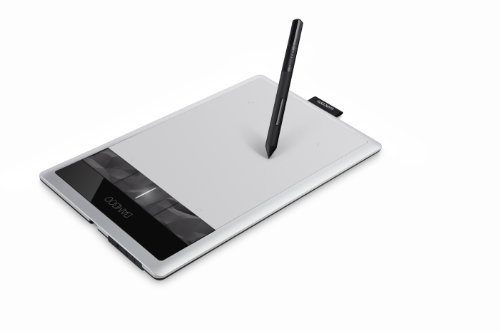
The Bamboo Slate takes a different approach: it captures strokes from a physical ballpoint pen writing on real paper, then converts them to digital files. You write naturally, flip through a physical notebook, and sync afterward. This suits people who prefer the feel of actual paper and want to archive or share notes digitally without a screen or stylus. The smart pen works on any paper clipped to the Slate. Conversion accuracy is good for clear print or handwriting, though complex cursive requires some adjustment time.
What we liked
- Edit digital photos, paint and draw with the natural feel of a pen on paper.
- Free downloadable creative software included: Photoshop Elements, AutoDesk Sketchbook Expr
- 4 ExpressKeys for quick shortcuts and a pressure sensitive pen.
How to choose
What to consider
Define your primary use case before comparing specs. Illustration and design require high pressure sensitivity and good palm rejection. Note-taking benefits most from a low-latency, lightweight device. Document signing and annotation can work with basic stylus input at low cost. Check software compatibility with your existing apps -- most tablets support Photoshop, Illustrator, and Clip Studio, but check less common tools before buying. For display tablets, verify that the color gamut matches your workflow requirements. Pen battery requirements and nib replacement costs are secondary but practical factors worth noting before committing.
What to consider
For the full desk environment, see our [best computer workstation setup](/articles/best-computer-workstation-setup) guide. Our [best computer workstations](/articles/best-computer-workstations) review covers the machines you will likely pair this pad with. For scoring methodology, visit our [methodology](/methodology) page.
Common questions
A graphics tablet is primarily designed for pressure-sensitive stylus input in creative applications like Photoshop or Illustrator. A digital writing pad is typically aimed at handwritten notes and document annotation. The distinction has blurred -- most modern graphics tablets handle both tasks well. If your primary use is note-taking, a standalone digital notepad with its own storage may be more practical.
Active area size affects how much hand movement translates to screen movement. Large pads give more natural 1:1 feel for detailed illustration. Medium-size pads are practical for most desks and suit note-taking and general design work. Small pads are portable and adequate for quick sketches but require more precise, confined hand movement for detailed work.
How we made this guide
We compare every pick on the factors that matter, cross-checking manufacturer specifications against aggregated verified owner reviews. We rank independently and never take payment for placement. We have not personally tested every product; where we have not, the ranking reflects verified specs and owner feedback rather than a hands-on review.
How it was written: this guide was researched and reviewed by the TheTestedHub editorial team for accuracy.
Affiliate disclosure: TheTestedHub is reader-supported. When you buy through links on our site, we may earn a commission at no extra cost to you.
More guides

Your Docking Station Match: CalDigit TS4 and More

Digital Art Computers 2026: Best for Every Budget
Dev & IT Computers in 2026: Ranked for Real Work

Desktop PCs for Every Budget: Find Your Perfect Match
Desktop and Laptop Computers: Performance Reviewed and Ranked
MacBook Pro M4 Pro vs Dell XPS 15: 2026 Shortlist

Buy the Best DIY Computer in 2026: Corsair One i300
