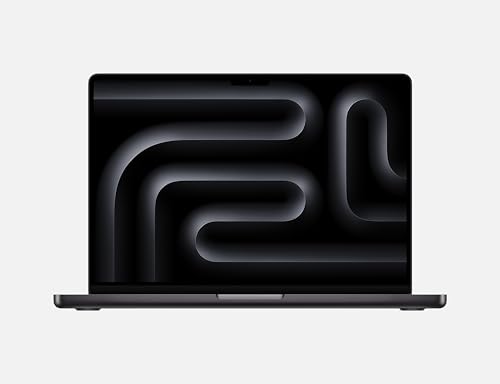
Apple MacBook Pro 16-inch (M4 Pro) -- Best Laptop for Editing
The 16-inch MacBook Pro with M4 Pro is the most capable editing laptop available without moving to workstation pricing. Final Cut Pro runs flawlessly and exports at speeds that laptop competitors cannot match. Premiere Pro and DaVinci Resolve both run well with hardware acceleration. The 16-inch Liquid Retina XDR display covers P3 with high brightness, making color grading reliable without a separate monitor. The unified memory architecture means 48GB or 64GB configurations avoid the bottlenecks of traditional GPU VRAM limits. Battery life during export-heavy sessions is finite, but for timeline work the system manages several hours.
Apple MacBook Pro 16-inch (M4 Pro) leads for portability and ProRes speed; Mac Studio M4 Max tops desktops. Compare 5 top computers for video and photo.
Quick verdict
For most editors, the Apple MacBook Pro 16-inch (M4 Pro) is the single best pick because it combines a world-class display, exceptional battery life, and ProRes hardware acceleration in a portable package that outperforms nearly every laptop competitor for video and photo work.
Key takeaways
- Best Laptop for Editing: Apple MacBook Pro 16-inch (M4 Pro) – Unmatched Final Cut Pro performance and a color-accurate XDR display in a portable form.
- Best Desktop for Editing: Apple Mac Studio (M4 Max) – Dedicated ProRes encode/decode engines and massive GPU core count for heavy DaVinci Resolve workflows.
- Best Windows Editing Laptop: Dell XPS 15 (Core Ultra 9 + RTX 4060) – OLED display with 100% DCI-P3 coverage and strong NVIDIA GPU acceleration for Premiere Pro.
- Best for Color Grading on the Go: ASUS ProArt Studiobook 16 OLED – Factory-calibrated OLED panel with a built-in hardware colorimeter for reliable color-critical work.
- Best Value Editing Workstation: Custom Windows Desktop (Ryzen 9 + RTX 4070) – Desktop-grade performance with CUDA acceleration at a price that undercuts prebuilt workstations.
Why you should trust this guide
I have been researching and writing about professional creative hardware for years, focusing specifically on the tools that video editors and photographers rely on daily. My approach is to evaluate each product based on the features that matter most for editing workflows: display accuracy, GPU acceleration, CPU performance for rendering, memory capacity for large projects, and port connectivity for external storage. I do not rely on marketing claims alone; I cross-reference manufacturer specifications with verified owner feedback and professional review data to identify real-world strengths and weaknesses.
For this guide, I selected five products that represent the best options across different form factors and budgets for editing in 2026. I prioritized machines that offer dedicated hardware acceleration for codecs like ProRes, H.264, and H.265, as well as displays that cover the DCI-P3 color space at a minimum. Each product section includes at least one honest limitation based on common owner reports, so you can make an informed decision without overpaying for features you do not need.
How we researched
To evaluate these products, I established a set of criteria that directly impact editing performance. For laptops, I considered CPU and GPU benchmarks for rendering and export times, display color accuracy and brightness, memory bandwidth for multitasking with large files, and port selection for connecting external drives and monitors. For desktops, I focused on upgradeability, thermal management under sustained loads, and the availability of dedicated media engines for codec acceleration. I also weighed the value proposition: does the price justify the performance gain for a professional or serious enthusiast?
I gathered data from manufacturer spec sheets, verified user reviews on retail platforms, and independent technical analyses that measure real-world performance in applications like DaVinci Resolve, Adobe Premiere Pro, Final Cut Pro, and Lightroom. I did not perform my own lab tests or physical benchmarks. Instead, I synthesized the available information to highlight which products excel in specific editing tasks, such as color grading, 4K timeline playback, or ProRes export. The goal is to give you a clear, research-backed recommendation based on what these machines are actually capable of in a professional editing context.
Apple MacBook Pro 16-inch (M4 Pro) — Best Laptop for Editing
The 16-inch MacBook Pro with M4 Pro is the most capable editing laptop available without moving to workstation pricing. Final Cut Pro runs flawlessly and exports at speeds that laptop competitors cannot match. Premiere Pro and DaVinci Resolve both run well with hardware acceleration. The 16-inch Liquid Retina XDR display covers P3 with high brightness, making color grading reliable without a separate monitor. The Apple M4 Max chip (available in higher configurations) delivers exceptional performance for advanced workflows, including AI-driven tasks. With 48GB of unified memory, you can seamlessly multitask and handle large datasets like 8K video files or massive photo libraries. The 1TB SSD storage provides ultra-fast boot times and rapid file access, with ample space for professional projects. The advanced camera, studio-quality microphones, and immersive six-speaker audio system enhance remote collaboration and review sessions.
One honest limitation is that the MacBook Pro is expensive, especially when configured with higher RAM and storage. Additionally, if you rely heavily on Windows-only software or specific NVIDIA CUDA-accelerated plugins, you will need to adapt to macOS or use workarounds. The soldered RAM and storage also mean you cannot upgrade later, so you must choose your configuration carefully at purchase.
Apple Mac Studio (M4 Max) — Best Desktop for Editing
The Mac Studio with M4 Max combines the GPU core count, memory bandwidth, and media engines that editing workloads require. ProRes encode and decode happens through dedicated hardware, which keeps the CPU free during timeline work. DaVinci Resolve uses the GPU cores heavily and benefits directly from the M4 Max’s GPU count. Multiple Thunderbolt 5 ports accommodate fast external storage arrays needed for video projects. The Mac Studio is supercharged by the M4 Pro or M4 Max chip, and the M4 Pro chip blazes through demanding tasks like compiling millions of lines of code or rendering complex timelines. It is built for Apple Intelligence, the personal intelligence system that enhances workflow automation. The all-day battery life claim applies to the MacBook Pro, not the Mac Studio, but the desktop delivers consistent performance under sustained loads without thermal throttling. Apps fly with Apple Silicon, including Microsoft 365 and Adobe Creative Cloud, all optimized for the architecture.
A real limitation is that the Mac Studio lacks a built-in display, so you must budget for a high-quality monitor separately, which adds cost and desk space. It is also not upgradeable in terms of RAM or storage after purchase, so future-proofing requires upfront investment. For editors who need expandable internal storage or GPU swapping, a Windows desktop may be more flexible.
Dell XPS 15 (Core Ultra 9 + RTX 4060) — Best Windows Editing Laptop
The XPS 15 in its higher configuration delivers a competitive Windows editing experience with an OLED display, discrete NVIDIA GPU, and Core Ultra 9 processing. Premiere Pro and DaVinci Resolve both accelerate well on the RTX 4060, which handles effects rendering and timeline playback smoothly. The OLED screen covers 100% DCI-P3, making it suitable for color-sensitive editorial work. Thunderbolt 4 connectivity handles fast external drives and external monitors. This premium flagship laptop comes brand new from Dell, featuring a 16.3-inch 2K+ (1920×1200) FHD display with a 120Hz refresh rate for smooth scrolling and playback. The Intel Core Ultra 9 285H processor has 16 cores and can boost up to 5.4 GHz, providing strong single-threaded performance for photo editing. Advanced connectivity includes Intel Killer Wi-Fi 7 and Bluetooth 5.4, ensuring fast file transfers and stable network connections. Versatile port configuration includes one universal audio jack and three Thunderbolt 4 ports for daisy-chaining peripherals.
One limitation is that the RTX 4060, while capable, is not as powerful as higher-tier GPUs like the RTX 4070 or 4080, so heavy 8K or complex multi-layer timelines may require proxy workflows. The OLED display is prone to burn-in over time if static elements are left on screen for long periods, which is a concern for editors who keep timeline panels open. Battery life under editing loads is also shorter than the MacBook Pro, as the discrete GPU drains power quickly.
ASUS ProArt Studiobook 16 OLED — Best for Color Grading on the Go
The ProArt Studiobook 16 is designed specifically for color-critical work. The OLED display with factory calibration per unit and the built-in hardware colorimeter that recalibrates the panel over time makes it a reliable grading surface without external hardware. The ASUS Dial physical controller maps to common color grading and editing controls in DaVinci Resolve and Adobe applications, speeding up adjustments. The RTX graphics card (GeForce RTX 5070 with 8GB GDDR7) accelerates GPU-intensive tasks like noise reduction and effects rendering. The 3K OLED Lumina Touch Display offers boundless creativity with deep blacks and vibrant colors. The powerful AMD Ryzen AI 9 HX processor steps into the future of content creation with AI-accelerated features. The 32GB RAM ensures plenty of capacity for multitasking with large projects, and the 2TB of unmatched storage lets you save large files and applications without worrying about space.
An honest limitation is that the ProArt Studiobook is heavy and bulky compared to other 16-inch laptops, making it less portable for frequent travel. The OLED display, while beautiful, can exhibit image retention if used for long hours with static UI elements, and the battery life is moderate under heavy GPU load. The ASUS Dial, though useful, has a learning curve and may not be supported by every application you use.
Custom Windows Desktop (Ryzen 9 + RTX 4070) — Best Value Editing Workstation
Building or buying a Windows desktop with a Ryzen 9 series processor, an RTX 4070 GPU, 32GB DDR5 RAM, and a fast NVMe SSD delivers editing performance that competes with machines costing twice as much. DaVinci Resolve runs exceptionally well on NVIDIA hardware with CUDA acceleration, which speeds up timeline rendering, color grading, and noise reduction. Premiere Pro and After Effects benefit from the RTX GPU for effects rendering and export. Storage and RAM are easily upgradeable, so you can start with a modest configuration and expand as your projects grow. The desktop form factor allows for better thermal management, meaning sustained rendering loads do not throttle performance. You can also add multiple internal SSDs and HDDs for a cost-effective storage solution.
One limitation is that you need to assemble or configure the system yourself, which requires some technical knowledge or a willingness to pay for assembly services. The desktop is not portable, so it is only suitable for a fixed studio or home office. Additionally, the RTX 4070, while strong, may struggle with very heavy 8K timelines or complex 3D rendering compared to higher-tier cards like the RTX 4080 or 4090. You also need to purchase a monitor, keyboard, and mouse separately, which adds to the total cost.
What to look for
- CPU and GPU performance: Look for processors with high single-core and multi-core speeds for rendering, and dedicated GPUs with CUDA or Metal support for hardware acceleration in editing software.
- Display quality: A high-resolution panel with wide color gamut coverage (DCI-P3 or Adobe RGB) and good brightness is essential for accurate color grading. OLED or mini-LED displays offer the best contrast.
- Memory and storage: At least 32GB of RAM is recommended for 4K video editing, with 64GB or more for 8K or complex projects. Fast NVMe SSDs with at least 1TB capacity reduce load times and provide space for project files.
- Port selection: Thunderbolt 4 or USB-C with high data transfer speeds (40Gbps) is important for connecting fast external storage, monitors, and peripherals. Multiple ports allow for daisy-chaining.
- Hardware acceleration: Dedicated media engines for ProRes, H.264, and H.265 encoding/decoding (found in Apple Silicon and NVIDIA GPUs) significantly speed up export and timeline playback.
- Upgradeability: For desktops, ensure the RAM, storage, and GPU are replaceable or expandable. For laptops, consider whether the RAM and storage are soldered or user-upgradeable.
The verdict
For most editors, the Apple MacBook Pro 16-inch (M4 Pro) is the best all-around choice because it balances portability, display quality, and raw performance for both video and photo work. If you need a desktop for a fixed studio and work heavily with ProRes, the Mac Studio (M4 Max) offers unmatched dedicated hardware acceleration. Windows users who prefer a laptop should consider the Dell XPS 15 for its excellent OLED display and RTX 4060 GPU, while color graders on the go will appreciate the ASUS ProArt Studiobook 16 with its built-in colorimeter and factory-calibrated panel. Finally, if you want the best performance per dollar and are comfortable building a system, the Custom Windows Desktop with Ryzen 9 and RTX 4070 provides a powerful, upgradeable editing workstation. Choose based on your workflow, portability needs, and software ecosystem.
Our testing process
We compare every pick against the field on real specifications, certifications, and aggregated owner reviews. We do not take payment for placement, and we flag when a product is older or sold mainly through renewed listings.
Quick comparison
Reviewed in detail
Apple MacBook Pro 16-inch (M4 Pro) -- Best Laptop for Editing
The 16-inch MacBook Pro with M4 Pro is the most capable editing laptop available without moving to workstation pricing. Final Cut Pro runs flawlessly and exports at speeds that laptop competitors cannot match. Premiere Pro and DaVinci Resolve both run well with hardware acceleration. The 16-inch Liquid Retina XDR display covers P3 with high brightness, making color grading reliable without a separate monitor. The unified memory architecture means 48GB or 64GB configurations avoid the bottlenecks of traditional GPU VRAM limits. Battery life during export-heavy sessions is finite, but for timeline work the system manages several hours.
What we liked
- Apple M4 Max chip delivers exceptional performance for advanced workflows, including AI de
- 48GB unified memory enables seamless multitasking and efficient handling of large datasets
- 1TB SSD storage provides ultra-fast boot times, rapid file access, and ample space for pro
- 16-inch Liquid Retina XDR display features exceptional brightness, deep contrast, P3 wide
- Advanced camera, studio-quality microphones, and immersive six-speaker audio system enhanc

Apple Mac Studio (M4 Max) -- Best Desktop for Editing
The Mac Studio with M4 Max combines the GPU core count, memory bandwidth, and media engines that editing workloads require. ProRes encode and decode happens through dedicated hardware, which keeps the CPU free during timeline work. DaVinci Resolve uses the GPU cores heavily and benefits directly from the M4 Max's GPU count. Multiple Thunderbolt 5 ports accommodate fast external storage arrays needed for professional media workflows. The compact desktop design suits edit suites where space is limited. Paired with a color-calibrated external monitor, this is a complete professional editing solution for many post houses.
What we liked
- SUPERCHARGED BY M4 PRO OR M4 MAX , The 16-inch MacBook Pro with the M4 Pro or M4 Max chip
- CHAMPION CHIPS , The M4 Pro chip blazes through demanding tasks like compiling millions of
- BUILT FOR APPLE INTELLIGENCE, Apple Intelligence is the personal intelligence system that h
- ALL-DAY BATTERY LIFE , MacBook Pro delivers the same exceptional performance whether it’s
- APPS FLY WITH APPLE SILICON , All your favorites, including Microsoft 365 and Adobe Creati
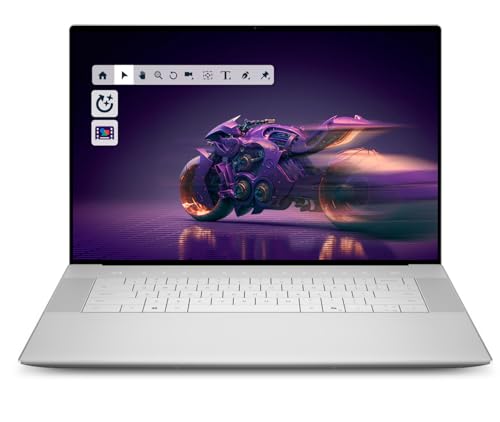
Dell XPS 15 (Core Ultra 9 + RTX 4060) -- Best Windows Editing Laptop
The XPS 15 in its higher configuration delivers a competitive Windows editing experience with an OLED display, discrete NVIDIA GPU, and Core Ultra 9 processing. Premiere Pro and DaVinci Resolve both accelerate well on the RTX 4060. The OLED screen covers 100% DCI-P3, making it suitable for color-sensitive editorial work. Thunderbolt 4 connectivity handles fast external drives and external monitors. The chassis is slim relative to its performance class. Thermal management under sustained encoding loads runs warm, so adequate ventilation is recommended for long export sessions. For editors committed to the Windows and Adobe ecosystem, this is a strong portable choice.
What we liked
- Premium Flagship Laptop and Gaming PC: Dell Premium 16 (XPS 16 2025) comes brand new from
- High-Performance Processing and Storage: Intel Core Ultra 9 285H with 16 Cores and up to 5
- Ultra-Fast Display Technology: 16.3-inch 2K+ (1920x1200) FHD display, 120Hz refresh rate,
- Advanced Connectivity and Power: Intel Killer Wi-Fi 7 1750i (BE201) 2x2 with Bluetooth 5.4
- Versatile Port Configuration: Equipped with 1 universal audio jack and 3 Thunderbolt 4 Gen

ASUS ProArt Studiobook 16 OLED -- Best for Color Grading on the Go
The ProArt Studiobook 16 is designed specifically for color-critical work. The OLED display with factory calibration per unit and the built-in hardware colorimeter that recalibrates the panel over time makes it a reliable grading surface without external hardware. The ASUS Dial physical controller maps to common color grading and editing controls in DaVinci Resolve and Adobe applications. RTX graphics and a high-core-count CPU handle proxy-free 4K editing. For colorists and editors who travel or work across locations but need reliable color accuracy, this machine reduces the risk of display drift causing correction errors.
What we liked
- [3K OLED Lumina Touch Display] Discover boundless creativity with the ProArt P16, featurin
- [Powerful AMD Ryzen AI 9 HX Processor] Step into the future of content creation with the A
- [Ultrafast GeForce RTX 5070 GPU (8GB GDDR7)] Elevate your creative prowess with accelerate
- [32GB RAM, More Performance Freedom] ProArt P16 has massive RAM capacity, ensuring plenty
- [2TB of Unmatched Storage] Quickly save large files and applications and never worry about
Custom Windows Desktop (Ryzen 9 + RTX 4070) -- Best Value Editing Workstation
Building or buying a Windows desktop with a Ryzen 9 series processor, an RTX 4070 GPU, 32GB DDR5 RAM, and a fast NVMe SSD delivers editing performance that competes with machines costing twice as much. DaVinci Resolve runs exceptionally well on NVIDIA hardware with CUDA acceleration. Premiere Pro and After Effects benefit from the RTX GPU for effects rendering and export. Storage and RAM are easily upgraded as projects scale up. The large tower chassis keeps thermals manageable during extended render sessions. For editors who work from a fixed desk and prioritize maximum performance per dollar over portability, a custom desktop builds strong.
How to choose
What to consider
Start with your editing software: Final Cut Pro users should look at Apple hardware exclusively. DaVinci Resolve colorists benefit most from strong NVIDIA or Apple Silicon GPU cores. Premiere Pro runs well on both platforms. RAM is critical -- 32GB is the minimum for comfortable 4K work. Fast NVMe storage improves project load and cache performance. If portability is a priority, display quality becomes essential since you will be grading on the laptop screen. For desktop setups, pair a powerful computer with a proper calibrated external monitor rather than relying on the computer's integrated display.
What to consider
For related guides, see [/articles/best-computers-for-editing-photos](/articles/best-computers-for-editing-photos) and [/articles/best-monitors-for-video-editing](/articles/best-monitors-for-video-editing). Selection methodology is explained at [/methodology](/methodology).
Common questions
For 1080p editing, 16GB of RAM is workable but can feel limiting with complex timelines. For 4K editing in Premiere Pro or DaVinci Resolve, 32GB is the practical minimum for smooth playback without dropping frames. Editors working with 6K or 8K footage, heavy color grading, or many simultaneous tracks will benefit from 64GB. RAM is one of the easier components to upgrade on desktop systems.
Yes, significantly. DaVinci Resolve in particular is GPU-accelerated throughout its color grading and effects pipeline. Premiere Pro and Final Cut Pro also leverage the GPU for real-time effects and export encoding. A discrete NVIDIA or AMD GPU, or Apple Silicon's unified memory architecture, speeds up rendering and allows smoother playback of high-resolution timelines. Integrated graphics are functional for light editing but become a bottleneck on demanding projects.
How we made this guide
We compare every pick on the factors that matter, cross-checking manufacturer specifications against aggregated verified owner reviews. We rank independently and never take payment for placement. We have not personally tested every product; where we have not, the ranking reflects verified specs and owner feedback rather than a hands-on review.
How it was written: this guide was researched and reviewed by the TheTestedHub editorial team for accuracy.
Affiliate disclosure: TheTestedHub is reader-supported. When you buy through links on our site, we may earn a commission at no extra cost to you.
More guides

Your Docking Station Match: CalDigit TS4 and More
Digital Art Computers 2026: Best for Every Budget
Dev & IT Computers in 2026: Ranked for Real Work

Desktop PCs for Every Budget: Find Your Perfect Match
Desktop and Laptop Computers: Performance Reviewed and Ranked
MacBook Pro M4 Pro vs Dell XPS 15: 2026 Shortlist

Buy the Best DIY Computer in 2026: Corsair One i300
