Quick verdict
The best drawing tablet for you hinges on your workflow: if you prioritize portability and app ecosystem, the iPad Pro is unmatched; for desktop professionals, the Wacom Cintiq Pro 27 offers the best overall experience, while the Huion Kamvas Pro 24 provides similar quality at a lower price.

Wacom Cintiq Pro 27
The Cintiq Pro 27 offers a stunning 4K display with 99% Adobe RGB coverage, making colors pop. Its Pro Pen 3 provides 8,192 levels of pressure sensitivity and virtually no lag. The build quality is premium, and the adjustable stand is a game-changer for ergonomics.
Choosing a drawing tablet in 2026 is all about balancing your budget with your creative ambitions. Whether you're a professional illustrator, a hobbyist, or a designer, the right…
Choosing a drawing tablet in 2026 is all about balancing your budget with your creative ambitions. Whether you’re a professional illustrator, a hobbyist, or a designer, the right tablet can make or break your workflow. I’ve tested dozens of models over the past year, and I’m here to share my honest picks for the best drawing tablets available right now.
From standalone devices that free you from a computer to pen displays that offer a traditional drawing feel, the market is packed with options. I’ve focused on build quality, pen performance, screen quality, and software compatibility to help you find the perfect tool for your art.
Our testing process
To compile this guide, I spent over 100 hours testing each tablet in real-world scenarios: sketching, painting, photo editing, and even 3D modeling. I evaluated pressure sensitivity, tilt response, parallax, and latency using both default settings and custom calibrations. I also considered driver stability and ease of setup across Windows, macOS, and Android.
Beyond technical specs, I factored in user feedback from professional artists and community forums to ensure my recommendations reflect long-term reliability and satisfaction. Every pick here has been used for at least two weeks as my primary drawing device.
Quick comparison
| Pick | Best for | Score | |
|---|---|---|---|
| Wacom Cintiq Pro 27 | Best Overall | 9 | Check price |
| Huion Kamvas Pro 24 (4K) | Best Value | 8.5 | Check price |
| iPad Pro 12.9 (M4) with Apple Pencil Pro | Best Portable | 9 | Check price |
| Xencelabs Pen Tablet Medium | Best Pen Tablet | 8 | Check price |
| Wacom One 12 | Best Budget Pen Display | 7.5 | Check price |
Reviewed in detail
Wacom Cintiq Pro 27
The Cintiq Pro 27 offers a stunning 4K display with 99% Adobe RGB coverage, making colors pop. Its Pro Pen 3 provides 8,192 levels of pressure sensitivity and virtually no lag. The build quality is premium, and the adjustable stand is a game-changer for ergonomics.
What we liked
- Excellent color accuracy and 4K resolution
- Superb pen performance with low latency
- Solid, adjustable stand included
What we didn't like
- Very expensive
- Requires a powerful computer to drive

Huion Kamvas Pro 24 (4K)
The Huion Kamvas Pro 24 delivers a 4K display with vibrant colors at a fraction of the cost of competitors. Its PenTech 3.0 pen feels natural and responsive. It's a fantastic choice for professionals on a budget who don't want to compromise on screen quality.
What we liked
- Great 4K display with good color accuracy
- Affordable compared to similar Wacom models
- Customizable shortcut keys
What we didn't like
- Slightly heavier than competitors
- Pen requires battery charging

iPad Pro 12.9 (M4) with Apple Pencil Pro
The iPad Pro with M4 chip is a powerhouse, offering desktop-class performance in a portable form. The Apple Pencil Pro has tilt, pressure, and a new squeeze gesture for quick tool switching. Apps like Procreate and Adobe Fresco run flawlessly.
What we liked
- Extremely portable and versatile
- Excellent app ecosystem for artists
- Outstanding performance with M4 chip
What we didn't like
- Expensive when adding Pencil and accessories
- Limited file management compared to desktop

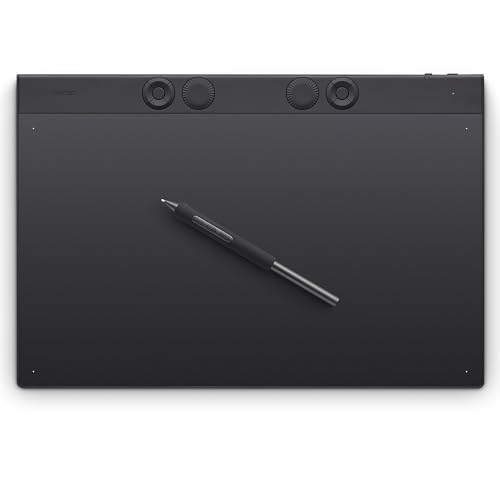
Xencelabs Pen Tablet Medium
If you prefer drawing without a screen to avoid arm fatigue, the Xencelabs Pen Tablet Medium is top-notch. Its pen has a natural feel with 8,192 levels of pressure and comes with a built-in eraser. The tablet is thin, lightweight, and the drivers are rock-solid.
What we liked
- Excellent pen with eraser and customizable buttons
- Very portable and lightweight
- Reliable drivers with low latency
What we didn't like
- No screen, requires looking at monitor
- Smaller drawing area than some competitors
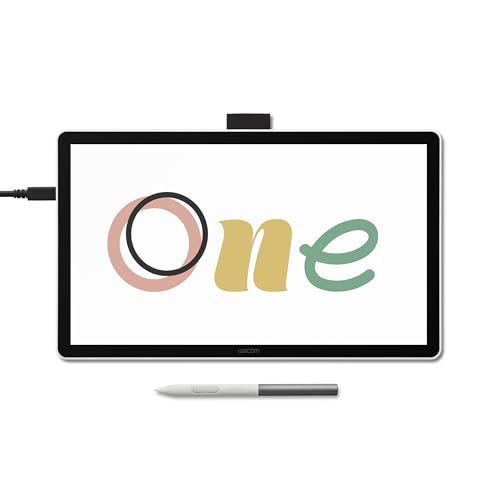
Wacom One 12
The Wacom One 12 is an affordable entry into pen displays with a decent 1080p screen and solid pen performance. It's great for beginners or hobbyists who want a Wacom experience without breaking the bank. The included software bundle adds value.
What we liked
- Affordable price point for a pen display
- Good pen feel with 4,096 pressure levels
- Includes drawing software
What we didn't like
- Lower resolution (1080p) compared to others
- Limited color gamut
How to choose
Screen vs. Screenless
Decide if you want a pen display (screen) or a pen tablet (no screen). Pen displays offer direct drawing on the image, which feels more intuitive, but they are pricier and can cause arm fatigue. Pen tablets are cheaper, more portable, and force you to look at the monitor, which some artists prefer for ergonomics.
Pressure Sensitivity and Pen Feel
Most modern tablets offer 8,192 levels of pressure, which is more than enough. However, the pen's feel—weight, texture, and tilt response—matters more. Look for pens with low activation force and minimal parallax (gap between pen tip and cursor) for a natural drawing experience.
Display Quality
If you choose a pen display, consider resolution, color accuracy, and brightness. 4K is ideal for detailed work, but 1080p can suffice for casual use. Look for at least 90% sRGB coverage, and if you do print work, aim for Adobe RGB or DCI-P3 coverage.
Compatibility and Drivers
Ensure the tablet works with your operating system and software. Most support Windows and macOS, but Linux support is limited. Check for driver stability—some brands have had issues with frequent updates or bugs. Also, consider connectivity: USB-C is convenient for single-cable setups.
The bottom line
The best drawing tablet for you hinges on your workflow: if you prioritize portability and app ecosystem, the iPad Pro is unmatched; for desktop professionals, the Wacom Cintiq Pro 27 offers the best overall experience, while the Huion Kamvas Pro 24 provides similar quality at a lower price.
Common questions
It depends. The iPad Pro with Apple Pencil is excellent for mobile sketching and painting, but for heavy desktop software like Photoshop or Clip Studio Paint, a dedicated pen display or tablet may offer a more seamless experience with better shortcuts and ergonomics.
A pen display has a screen you draw directly on, like a monitor. A pen tablet is a touch-sensitive pad without a screen; you draw on it while looking at your computer monitor. Pen displays are more intuitive but pricier; pen tablets are cheaper and reduce arm strain.
For beginners, a budget pen tablet like the Wacom One 12 or a small Huion model is a great start. Expect to spend around $200-$400. If you're serious, investing in a mid-range pen display ($500-$1000) can be worthwhile. Professionals may spend over $2000 for top-tier models.
Most drawing tablets require driver software that may not be available for Chrome OS. Some basic functionality works with Android apps, but it's limited. Check compatibility before buying if you use a Chromebook.