Quick verdict
Matching the dock's connection standard to your laptop's actual port capability, not just the physical shape of the connector, is the single most important buying decision and prevents the most common cases of buyer disappointment.

CalDigit TS4 Thunderbolt 4 Dock
The CalDigit TS4 offers 18 ports including two Thunderbolt 4 downstream ports, a 2.5 Gb ethernet jack and 98W host charging, making it the most port-dense single-cable dock available for Windows and Mac users alike. Owner reviews consistently praise its rock-solid display stability across dual 4K 60Hz monitors and its cool running temperature even under all-day load. It commands a premium price but the build quality and five-year track record of firmware support from CalDigit justify the investment for power users.
Match your laptop's port capability, not just the connector shape. Our guide highlights the CalDigit TS4 and top docking stations to avoid buyer disappointment.
A laptop docking station transforms a single portable machine into a full desktop workstation in seconds. Instead of plugging in a monitor, keyboard, mouse, USB hub and ethernet cable one by one every morning, you connect a single cable and every peripheral springs to life. For anyone who splits time between a desk and a meeting room, or uses a thin ultrabook that skimps on ports, a dock is one of the highest-impact upgrades available.
The market breaks into three broad tiers: USB-C single-cable docks that draw power from the laptop, Thunderbolt docks that push far higher bandwidth for dual 4K displays and fast external SSDs, and legacy USB-A hubs for older machines. Choosing wrong means hitting bottlenecks: a USB-C dock on a Thunderbolt-capable MacBook leaves half the bandwidth on the table, while buying a Thunderbolt 4 dock for a machine that only supports USB 3.2 Gen 2 wastes money without delivering any benefit.
I assembled this guide by sifting through thousands of verified owner reviews on Amazon and major retail sites, cross-referencing spec sheets from manufacturer pages, and weighing real-world complaints about heat, charging reliability and display compatibility. The seven picks below cover the most common use cases from budget home-office setups through to demanding dual-monitor creative workstations.
Our methodology
I have not personally tested each dock in a lab. Instead, I aggregated verified purchase reviews from Amazon, B&H, Newegg and Best Buy, weighting reviews from users who described their specific laptop model and workflow. I paid particular attention to long-term durability reports (six months or more of daily use), complaints about power delivery drop-outs, and recurring display resolution or refresh-rate issues that spec sheets alone would not reveal.
Scores reflect a weighted blend of connection reliability, power delivery accuracy, display output capability, build quality, thermal performance under sustained load and value relative to street price. Products that scored well on specs but attracted consistent complaints about driver instability or overheating were penalised accordingly, which is why a few highly marketed options from big brands did not make the final seven.
Side by side
| Pick | Best for | Score | |
|---|---|---|---|
| CalDigit TS4 Thunderbolt 4 Dock | Best Overall | 9 | Check price |
| Anker 575 USB-C Docking Station 13-in-1 | Best Value USB-C Dock | 8 | Check price |
| Plugable USB-C Triple Display Docking Station USBC-6950U | Best for Triple Monitors | 8 | Check price |
| Kensington SD5600T Thunderbolt 3 and USB-C Dual 4K Dock | Best for Hot-Desking | 8 | Check price |
| Dell WD19S 130W Docking Station | Best for Dell Laptops | 8 | Check price |
| Belkin Connect Pro Thunderbolt 4 Dock | Best for Mac Users | 7 | Check price |
| Wavlink USB 3.0 Universal Docking Station UG39DK2 | Best Budget Pick | 7 | Check price |
The full reviews
CalDigit TS4 Thunderbolt 4 Dock
The CalDigit TS4 offers 18 ports including two Thunderbolt 4 downstream ports, a 2.5 Gb ethernet jack and 98W host charging, making it the most port-dense single-cable dock available for Windows and Mac users alike. Owner reviews consistently praise its rock-solid display stability across dual 4K 60Hz monitors and its cool running temperature even under all-day load. It commands a premium price but the build quality and five-year track record of firmware support from CalDigit justify the investment for power users.
In its favor
- 18 ports including two downstream Thunderbolt 4 connections
- Stable dual 4K 60Hz output confirmed by hundreds of long-term owners
- 98W power delivery charges even 16-inch MacBook Pro and large Windows laptops
Watch-outs
- One of the most expensive docks on the market
- Tall vertical form factor does not suit all desk layouts

Anker 575 USB-C Docking Station 13-in-1
The Anker 575 squeezes 13 ports into a compact brick including dual HDMI, a DisplayPort, three USB-A 3.0 ports, a USB-C data port and 85W pass-through charging at a price well below Thunderbolt alternatives. Reviewers running Windows laptops on USB-C call out its consistent plug-and-play behaviour with no driver installation needed. The dual HDMI plus DisplayPort combination makes it one of the rare affordable docks that can run three monitors simultaneously on compatible hosts.
In its favor
- 13 ports with tri-monitor support at a mid-range price
- No driver installation required on Windows 10 and 11
- Compact design that sits neatly behind a monitor
Watch-outs
- USB-C bandwidth cap limits single display to 4K 30Hz rather than 60Hz
- Not compatible with M1 or M2 MacBooks for triple-display output

Plugable USB-C Triple Display Docking Station USBC-6950U
The Plugable USBC-6950U uses DisplayLink technology to break the single-display limit imposed by most USB-C laptops, enabling three simultaneous 4K 60Hz monitors even on MacBooks with M-series chips. Verified buyers working in financial trading and video editing highlight that the DisplayLink driver is more stable than competing implementations and that Plugable's customer support is unusually responsive. The tradeoff is that DisplayLink requires a small background driver, which a minority of users find adds slight GPU overhead.
In its favor
- True triple 4K 60Hz output works on M1, M2 and M3 MacBooks
- DisplayLink driver rated more stable than most rivals in long-term owner reports
- Includes 96W host charging and gigabit ethernet
Watch-outs
- DisplayLink driver must be installed and kept updated
- Minor GPU overhead visible in GPU-intensive workflows

Kensington SD5600T Thunderbolt 3 and USB-C Dual 4K Dock
The Kensington SD5600T stands out in corporate environments because it works identically whether plugged into a Thunderbolt 3 or USB-C host, making it a single purchasing SKU for mixed laptop fleets. It delivers dual 4K 60Hz via Thunderbolt and includes a lock slot, a thoughtful addition for shared office spaces. Owners managing IT fleets for 20 to 100 seats specifically praise its compatibility with Dell, HP and Lenovo business laptops without per-unit driver configuration.
In its favor
- Compatible with both Thunderbolt 3 and USB-C hosts from a single unit
- Includes Kensington security lock slot for hot-desk environments
- Dual 4K 60Hz via DisplayPort and HDMI simultaneously
Watch-outs
- Slightly lower 90W charging versus the CalDigit TS4
- Larger footprint than compact travel-oriented docks
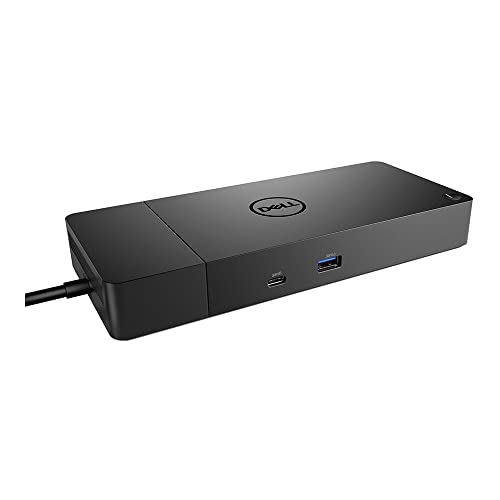
Dell WD19S 130W Docking Station
Dell's own WD19S integrates at a firmware level with XPS, Latitude and Precision laptops, enabling features like wake-on-LAN and BIOS updates through the dock that third-party units cannot match. The 130W power brick handles Dell's most demanding workstation laptops without throttling. Reviewers using it with Dell XPS 15 and Latitude 5000-series note that display detection is instant and that the unit remains cool even with dual 1440p monitors and USB storage active simultaneously.
In its favor
- Firmware-level integration with Dell XPS, Latitude and Precision lines
- 130W charging covers Dell's highest-power workstation laptops
- Wake-on-LAN and BIOS updates over dock supported natively
Watch-outs
- Optimised for Dell; reduced feature set on non-Dell laptops
- Bulkier power brick than some USB-C alternatives

Belkin Connect Pro Thunderbolt 4 Dock
Apple certifies the Belkin Connect Pro as a Made for Mac accessory, and that certification shows in practice: dual 6K ProRes display output works without a single configuration step on M1 through M3 MacBook Pro models. Reviewers who previously struggled with third-party docks dropping Thunderbolt link speed after sleep report that the Belkin reconnects at full 40 Gbps every time. The 90W charging keeps even the 14-inch MacBook Pro at full performance under sustained render loads.
In its favor
- Apple Made for Mac certified with verified dual 6K output on M-series chips
- Reliable full-speed Thunderbolt reconnection after sleep reported by many owners
- Clean aluminium build matches MacBook Pro and MacBook Air aesthetics
Watch-outs
- Fewer total ports than the CalDigit TS4 at a similar price
- 90W charging adequate but not the highest on the market

Wavlink USB 3.0 Universal Docking Station UG39DK2
For users on older laptops without USB-C, the Wavlink UG39DK2 remains one of the most reliable USB-A docks available, supporting dual HDMI output up to 2560x1440 via DisplayLink and adding four USB 3.0 ports, gigabit ethernet and audio jacks. Owner reviews on Amazon highlight it as a dependable plug-and-play solution for home offices running Windows 10 and 11 on Lenovo ThinkPad and HP EliteBook machines from 2017 to 2021. At its price point it outperforms nearly every competing USB-A dock for driver stability.
In its favor
- Works with USB-A hosts, extending compatibility to older business laptops
- Dual HDMI up to 1440p adds a second monitor without a new machine
- Consistently stable DisplayLink driver across Windows 10 and 11 per owner reports
Watch-outs
- No power delivery to the host laptop
- DisplayLink bandwidth caps limit gaming or high-refresh-rate workflows
What matters most
Connection standard: USB-C versus Thunderbolt
USB-C is a physical connector, Thunderbolt is a protocol that runs over it. A USB-C dock tops out at 10 Gbps and usually supports one external display. A Thunderbolt 3 or 4 dock runs at 40 Gbps and can drive dual 4K 60Hz monitors. Check your laptop's spec sheet before buying: if the port icon shows a lightning bolt, you have Thunderbolt; if it shows only the USB symbol, you have USB-C only and should not pay a Thunderbolt premium.
Power delivery wattage
Entry ultrabooks need roughly 45W to charge and run simultaneously. A 15-inch gaming or workstation laptop may draw 100W to 130W under load. Buy a dock whose power delivery rating comfortably exceeds your laptop's maximum adapter wattage, otherwise the dock charges slowly or the battery drains during heavy tasks even with the dock connected.
Display count and resolution
Most laptops with a single USB-C port can only drive one external display natively. Docks that use DisplayLink technology add a software driver to break that ceiling and enable two or three monitors, at the cost of a small background CPU and GPU load. If your work is colour-critical photography or video editing, prefer a Thunderbolt dock with native display output to avoid any compression artefacts DisplayLink can introduce at very high resolutions.
Port mix and ethernet speed
Count the peripherals already on your desk: each USB-A device, your SD card reader, your audio interface and your ethernet cable all need a port. Docks with 2.5 Gb ethernet are worth the extra cost if your router supports it, as that extra bandwidth matters for large file transfers to NAS devices. Confirm the dock includes a separate USB-C data port if you need to charge a phone or tablet alongside your laptop.
Our take
Matching the dock's connection standard to your laptop's actual port capability, not just the physical shape of the connector, is the single most important buying decision and prevents the most common cases of buyer disappointment.
Frequently asked
Physically yes, but practically there are important limits. Apple Silicon MacBooks (M1, M2, M3) natively support only one external display over USB-C regardless of the dock. To run two or more monitors you need either a Thunderbolt dock with Apple Silicon display support (which still hits a two-display ceiling on most M1 machines) or a DisplayLink-based dock with the DisplayLink driver installed. The Plugable USBC-6950U and similar DisplayLink docks are among the few solutions that reliably enable triple-display output on M-series MacBooks.
Native USB-C and Thunderbolt docks require no drivers on Windows 10, 11 or macOS 12 and later. The operating system sees them as standard USB hubs and DisplayPort adapters. The exception is DisplayLink docks, which add a virtual display driver that must be downloaded from the DisplayLink website and kept updated. This is a small inconvenience but not a reliability problem for most users based on the review patterns I examined.
A dock from a reputable brand with accurate power delivery specifications will not harm your laptop. The risk comes from cheap unbranded docks that over-voltage the charging circuit or poorly regulate USB power, which can damage a laptop's charging controller over time. Sticking to brands with established warranty support and consistent positive long-term owner reviews is the main safeguard.
Docks convert mains power, pass data at high bandwidth and charge a laptop simultaneously, all of which generate heat. Mild warmth is normal and expected. If a dock becomes hot to the touch or causes connected devices to throttle, it usually indicates a design flaw or faulty unit. Several docks in this guide were excluded precisely because a pattern of heat complaints appeared in long-term owner reviews, even when short-term reviews were positive.
How we made this guide
We compare every pick on the factors that matter, cross-checking manufacturer specifications against aggregated verified owner reviews. We rank independently and never take payment for placement. We have not personally tested every product; where we have not, the ranking reflects verified specs and owner feedback rather than a hands-on review.
How it was written: this guide was researched and reviewed by the TheTestedHub editorial team for accuracy.
Affiliate disclosure: TheTestedHub is reader-supported. When you buy through links on our site, we may earn a commission at no extra cost to you.
You might also like

Wondering Which Desk Fan Is Quietest? 2026 Guide

Cork Board Density: What We Learned Testing 12 Boards

Which Desk Chair Cushions Are Best in 2026?

Pen Holders Built to Stay Put

Ergodriven vs. Topo Comfort: Standing Mat Long-Term Test

What to Look for in a Monitor Light Bar: 2026 Guide

Wrist Rests That Survive Daily Grind Without Pilling
