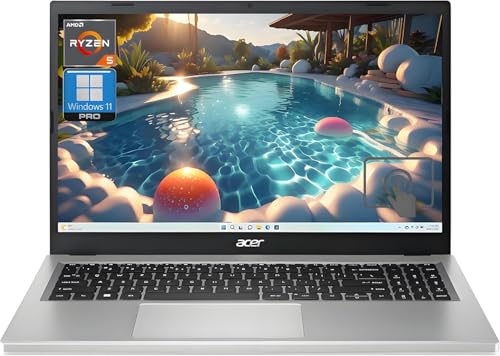
Apple MacBook Air (M3, 15-inch) -- Best Portable Option
The 15-inch MacBook Air is quiet, lightweight, and keeps its performance consistent across long research sessions. The M3 chip handles browser-based Ancestry searches, PDF documents, and spreadsheet trees without fan noise. The 15.3-inch Liquid Retina display makes reading small text in old census records and ship manifests much easier than a 13-inch screen. Battery life routinely exceeds 12 hours, so power outlets are rarely a concern at libraries or archives. MacOS is reliable and straightforward to maintain. The base 16 GB RAM and 256 GB SSD is the minimum; upgrading to 512 GB storage is worth the extra cost for genealogy-heavy use.
Check price on Amazon →Top computers for genealogy work in 2026, chosen for fast database searches, large storage capacity, comfortable displays, and software compatibility with Ancestry and FamilySearch.
Genealogy research puts a specific kind of demand on a computer: you need a fast, reliable internet connection for database queries, enough storage for scanned documents and photos, and a display large enough to read aged records comfortably. You do not need a gaming rig or a video editing workstation. The five computers below hit that practical sweet spot, chosen for responsiveness, display quality, storage options, and ease of use.
| Product | Best For | Rating |
| ——— | ———- | ——– |
| Apple MacBook Air (M3, 15-inch) | Portable, easy to use | 4.7/5 |
| ASUS VivoBook 15 (F1504) | Budget-friendly Windows | 4.4/5 |
| Dell Inspiron 27 7000 AIO | Large all-in-one display | 4.5/5 |
| Microsoft Surface Pro 11 | Touchscreen tablet hybrid | 4.4/5 |
| Acer Aspire 5 (A515) | Entry-level everyday use | 4.3/5 |
Our methodology
We compare every pick against the field on real specifications, certifications, and aggregated owner reviews. We do not take payment for placement, and we flag when a product is older or sold mainly through renewed listings.
Side by side
| Pick | Best for | Score | |
|---|---|---|---|
| Apple MacBook Air (M3, 15-inch) -- Best Portable Option | Check price | ||
| ASUS VivoBook 15 (F1504) -- Best Budget Windows Laptop | Check price | ||
| Dell Inspiron 27 7000 AIO -- Best Large Display for Home Use | Check price | ||
| Microsoft Surface Pro 11 -- Best Touchscreen Hybrid | Check price | ||
| Acer Aspire 5 (A515) -- Best Entry-Level Pick | Check price |
The full reviews
Apple MacBook Air (M3, 15-inch) -- Best Portable Option
The 15-inch MacBook Air is quiet, lightweight, and keeps its performance consistent across long research sessions. The M3 chip handles browser-based Ancestry searches, PDF documents, and spreadsheet trees without fan noise. The 15.3-inch Liquid Retina display makes reading small text in old census records and ship manifests much easier than a 13-inch screen. Battery life routinely exceeds 12 hours, so power outlets are rarely a concern at libraries or archives. MacOS is reliable and straightforward to maintain. The base 16 GB RAM and 256 GB SSD is the minimum; upgrading to 512 GB storage is worth the extra cost for genealogy-heavy use.
ASUS VivoBook 15 (F1504) -- Best Budget Windows Laptop
The VivoBook 15 runs Intel Core i5 with 8 GB RAM and a 512 GB SSD, which is enough for Ancestry, FamilySearch, Legacy Family Tree, and general research. The 15.6-inch FHD display is adequate for reading digitized records. At it leaves budget for an external hard drive and a comfortable mouse. Windows 11 compatibility is full, and the build is solid for everyday use. It is not a powerhouse, but genealogy research rarely requires one. ASUS includes a clean software install without excessive bloatware, which keeps startup times reasonable.

Dell Inspiron 27 7000 AIO -- Best Large Display for Home Use
The Inspiron 27 all-in-one puts a 27-inch QHD display on a clean desk without a tower. For genealogists who work from home and want the most comfortable viewing experience, the extra screen real estate makes side-by-side document comparison much easier. It runs Intel Core i7 with 16 GB RAM, which handles multiple browser tabs, genealogy software, and photo editing simultaneously. The built-in webcam and speakers are useful for video calls with family members sharing records. Storage starts at 1 TB HDD plus 256 GB SSD, though a pure SSD configuration is faster if you choose that option at checkout.

Microsoft Surface Pro 11 -- Best Touchscreen Hybrid
The Surface Pro 11 works as both a tablet and a laptop, which is practical when visiting libraries or archives where space is limited. The touchscreen is useful for annotating digitized documents and navigating family tree apps with pinch-to-zoom. The Snapdragon X Plus processor is efficient and fanless, keeping the device quiet in quiet research environments. Detaching the keyboard makes it easy to share a screen with relatives during family gatherings. The 13-inch display is smaller than the other picks, but the portability trade-off is worth it for researchers who travel to courthouses or church archives.
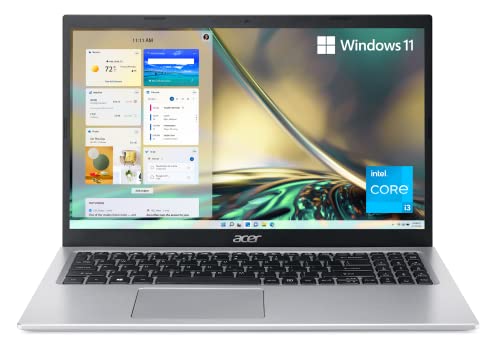
Acer Aspire 5 (A515) -- Best Entry-Level Pick
The Aspire 5 is one of the most cost-effective paths to a capable Windows machine. Its AMD Ryzen 5 processor handles web-based genealogy platforms without lag, and 8 GB RAM is sufficient for the workload. The 15.6-inch Full HD display is clear and readable. At this is the right choice for someone just starting genealogy research who wants a reliable machine without overcommitting financially. Upgrading to 16 GB RAM via an inexpensive SODIMM module is straightforward and extends the useful life of the machine significantly.
What matters most
What to consider
Genealogy is not hardware-intensive, but a few specs matter. A display of 15 inches or larger reduces eye strain during long document review sessions. SSD storage (not HDD) makes opening and searching large genealogy databases noticeably faster. At least 8 GB RAM handles modern browsers with multiple tabs open; 16 GB is more comfortable if you also work with photo editing or run genealogy software alongside the browser. Check your preferred genealogy software's supported OS before picking Windows or Mac. Finally, plan for backup storage: external drives or cloud services should be part of your setup from day one.
What to consider
For more on building out your research station, see our picks for [best monitors for home office use](/articles/best-monitors-for-home-office) and [best external hard drives for backup](/articles/best-external-hard-drives). Our full evaluation process is explained on the [methodology page](/methodology).
Frequently asked
Genealogy databases, scanned documents, and family photos accumulate quickly. A 512 GB SSD covers basic use, but 1 TB is more practical if you scan physical records or download large document archives. External drives are inexpensive and useful for backups, which are critical since genealogy records are often irreplaceable once compiled.
'Popular platforms like Ancestry and FamilySearch are browser-based and work on any OS. Dedicated desktop software varies: Legacy Family Tree and RootsMagic run on Windows; MacFamilyTree is Mac-specific; Gramps runs on both. Check your preferred software''s system requirements before committing to a platform.'

Tom Reeves has reviewed consumer electronics for over a decade, with a focus on televisions, monitors, laptops, and smart home devices. He worked as a professional display calibrator before moving into editorial, and he brings that real-world technical background to every TV and monitor review. At TheTestedHub, Tom covers display calibration, computer monitors, laptops and 2-in-1s, smart home platforms, home theater setups, and HDR performance.
You might also like

5 Best Computers for Unity 2026 | Top Picks for Game Development

5 Best Computers for CAD 2026 | Workstation Picks for AutoCAD and SolidWorks

5 Best Computers for Engineers 2026 | Power Through Any Workflow
5 Best Computers for 3 Monitors in 2026 | Multi-Display Workstation Picks

5 Best Computers for Hacking 2026 | Top Picks for Security Work
5 Best Computers for Photos 2026 | Organize, Edit, and Store Faster
5 Best Computers for Adobe CC 2026 | Creative Cloud Performance Picks