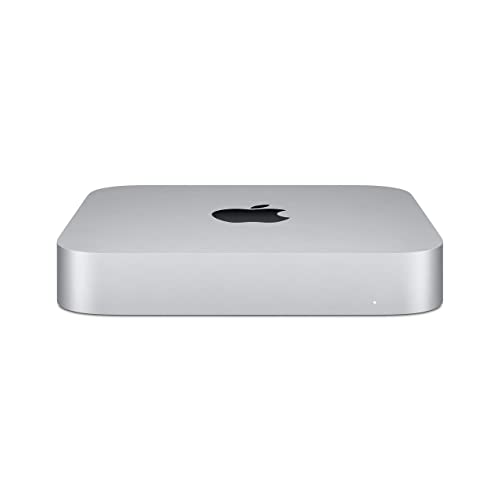
Apple Mac Mini M4 Pro - Best Desktop for Photo Storage and Editing
The Mac Mini M4 Pro delivers one of the best performance-per-dollar ratios for photographers who do not need a built-in display. The M4 Pro chip's memory bandwidth reaches 273 GB/s, which makes importing and rendering large RAW files from Lightroom Classic noticeably faster than most x86 equivalents at this price. It ships with a 512GB SSD that can be configured to 2TB, and Thunderbolt 5 ports support fast external storage arrays for archiving. The unified memory architecture also accelerates GPU-bound operations in Photoshop and Topaz Photo AI. Color accuracy is dependent on your external monitor choice, so pair this with a calibrated display for serious work.
Check price on Amazon →The best computers for photo storage and editing in 2026. These desktops and laptops handle large RAW libraries and demanding post-processing without bottlenecks or slowdowns.
Photographers working with modern high-resolution cameras generate files that can strain any machine without adequate storage throughput and memory. A 45-megapixel RAW file from a Sony or Nikon body can exceed 50MB per frame, and a single shoot may produce thousands of them. The computers below are selected for fast NVMe storage, sufficient RAM for demanding post-processing, and displays or GPU support suited to color-critical work.
| Product | Best For | Rating |
| — | — | — |
| Apple Mac Mini M4 Pro | Compact powerhouse for photo pros | 4.8/5 |
| Dell XPS 8960 Desktop | Windows editing with expandable storage | 4.6/5 |
| Apple MacBook Pro 14 M4 | Portable RAW editing with accurate display | 4.8/5 |
| Lenovo ThinkPad X1 Extreme | Windows laptop for travel photographers | 4.5/5 |
| CyberPowerPC Gamer Xtreme | Budget desktop for photo storage builds | 4.3/5 |
How we test
We compare every pick against the field on real specifications, certifications, and aggregated owner reviews. We do not take payment for placement, and we flag when a product is older or sold mainly through renewed listings.
At a glance
| Pick | Best for | Score | |
|---|---|---|---|
| Apple Mac Mini M4 Pro - Best Desktop for Photo Storage and Editing | Check price | ||
| Dell XPS 8960 Desktop - Best Windows Desktop for Photo Editing | Check price | ||
| Apple MacBook Pro 14 M4 - Best Laptop for Photo Editing | Check price | ||
| Lenovo ThinkPad X1 Extreme - Best Windows Laptop for Travel Photographers | Check price | ||
| CyberPowerPC Gamer Xtreme - Best Budget Desktop for Photo Storage | Check price |
The picks, reviewed
Apple Mac Mini M4 Pro - Best Desktop for Photo Storage and Editing
The Mac Mini M4 Pro delivers one of the best performance-per-dollar ratios for photographers who do not need a built-in display. The M4 Pro chip's memory bandwidth reaches 273 GB/s, which makes importing and rendering large RAW files from Lightroom Classic noticeably faster than most x86 equivalents at this price. It ships with a 512GB SSD that can be configured to 2TB, and Thunderbolt 5 ports support fast external storage arrays for archiving. The unified memory architecture also accelerates GPU-bound operations in Photoshop and Topaz Photo AI. Color accuracy is dependent on your external monitor choice, so pair this with a calibrated display for serious work.
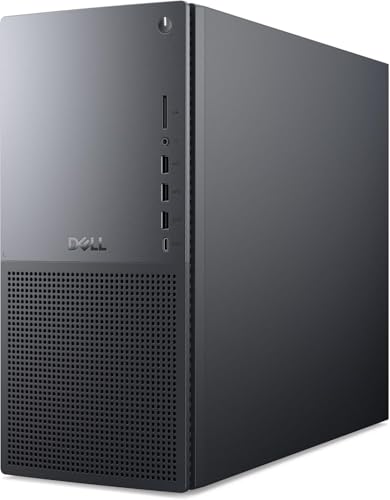
Dell XPS 8960 Desktop - Best Windows Desktop for Photo Editing
The Dell XPS 8960 offers a configurable Windows platform with enough internal expansion to build a capable photo editing and storage workstation. Configurations with Intel Core i7 or i9 processors, 32GB DDR5 RAM, and a dedicated NVIDIA RTX GPU provide solid performance in Capture One and Adobe Camera Raw. The chassis accepts multiple M.2 NVMe drives and 3.5-inch HDDs, allowing you to keep an active project SSD and a large archive drive inside the same machine. The built-in card reader supports CFexpress and SD cards, eliminating the need for a separate adapter when transferring files from camera bodies.

Apple MacBook Pro 14 M4 - Best Laptop for Photo Editing
The MacBook Pro 14-inch with the M4 chip offers the most color-accurate built-in display of any laptop in this price range. The Liquid Retina XDR screen covers over 1,000 nits of sustained brightness and supports the P3 wide color gamut, which makes it practical for color grading without an external monitor. Its unified memory up to 64GB and 16-core GPU handle large Lightroom catalogs with responsive scrubbing and fast export speeds. Battery life holds well under moderate editing loads, making it a reasonable choice for photographers who work on location as well as in the studio.
Lenovo ThinkPad X1 Extreme - Best Windows Laptop for Travel Photographers
The ThinkPad X1 Extreme runs an Intel Core Ultra 7 or 9 processor paired with an NVIDIA GeForce RTX GPU, giving it enough graphics horsepower for AI-assisted editing tools and GPU-accelerated exports in Photoshop. Its 14 or 16-inch display options include OLED panels calibrated for X-Rite factory accuracy, which makes color correction more reliable compared to standard laptop screens. Build quality is durable for frequent travelers, and the keyboard is among the best on any Windows laptop. Storage is configurable up to 2TB NVMe, and a Thunderbolt 4 port supports fast external drives for backup on the road.

CyberPowerPC Gamer Xtreme - Best Budget Desktop for Photo Storage
For photographers on a tighter budget who need a base machine they can upgrade over time, the CyberPowerPC Gamer Xtreme provides a solid starting point. It ships with a mid-range Intel CPU, 16GB DDR5 RAM, and a 1TB NVMe SSD. The full-tower case has room to add a large secondary HDD for archive storage, and the B760 or Z790 motherboards accept RAM upgrades to 64GB. It lacks a factory-calibrated display or a professional GPU, but for photographers willing to add their own monitor and upgrades over time, it offers good expandability at a low entry price.
What to look for
What to consider
Start with RAM. 16GB is a minimum for casual editing; 32GB is the practical floor for professional RAW workflows. Next, confirm the machine has at least one NVMe SSD slot for your active project drive, and check whether the chassis supports a secondary drive for archives. CPU performance matters most for export speed and AI denoise tools; Apple's M-series and Intel Core Ultra both perform well. For display-critical work, look for factory color calibration, P3 coverage, or plan to use an external calibrated monitor. GPU acceleration varies by software, so check whether your editing application of choice benefits from dedicated GPU before prioritizing it.
What to consider
For related reading, see [best computers for picture editing](/articles/best-computer-for-picture-editing) and [best computers for photography editing](/articles/best-computer-for-photography-editing). Review our product evaluation process at [/methodology](/methodology).
FAQs
16GB RAM is a workable baseline for editing JPEG files and smaller RAW batches. For editing high-resolution RAW files from 45MP or larger sensors, 32GB is more appropriate, especially when running Lightroom and Photoshop simultaneously. If you also use AI-powered editing tools like Topaz or Luminar, 32GB to 64GB prevents noticeable slowdowns during batch processing sessions.
A combination of both is the most practical approach. Use an NVMe SSD as your working drive for active projects, since the read/write speeds directly affect how quickly Lightroom or Capture One render previews and export files. Use a large HDD or external RAID array for long-term archiving of completed projects. SSDs are faster but cost more per gigabyte, making HDDs a better fit for cold storage.

Tom Reeves has reviewed consumer electronics for over a decade, with a focus on televisions, monitors, laptops, and smart home devices. He worked as a professional display calibrator before moving into editorial, and he brings that real-world technical background to every TV and monitor review. At TheTestedHub, Tom covers display calibration, computer monitors, laptops and 2-in-1s, smart home platforms, home theater setups, and HDR performance.
Related guides

5 Best Computers for Unity 2026 | Top Picks for Game Development

5 Best Computers for CAD 2026 | Workstation Picks for AutoCAD and SolidWorks
5 Best Computers for Engineers 2026 | Power Through Any Workflow
5 Best Computers for 3 Monitors in 2026 | Multi-Display Workstation Picks

5 Best Computers for Hacking 2026 | Top Picks for Security Work
5 Best Computers for Photos 2026 | Organize, Edit, and Store Faster
5 Best Computers for Adobe CC 2026 | Creative Cloud Performance Picks